Multi-Way Channels
Categories:
In MAXX-Remote you can create multi-way channels. A multi-way channel is like a regular channel, which contains additional channel-objects (ChannelWays) that are hard-linked to their overlying channel (“parent-channel”). The main purpose of multi-way channels, is to represent an entire speaker in your installation using a single channel object, each channel-way representing one of the ways/drivers of that particular speaker, while the parent-channel will control the speaker as a whole.
Creating Multi-Way Channels
Please refer to corresponding section of the Quick-Start chapter for a general guide on how the “add-channels” dialog works.
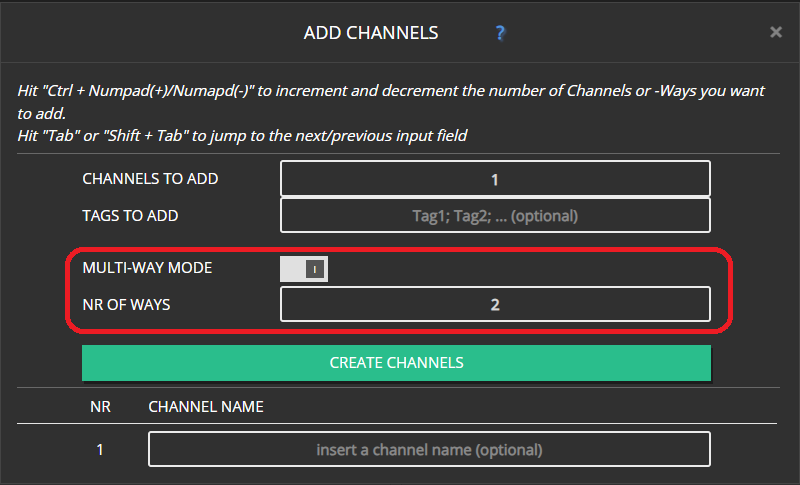
You can add multi-way channels, by enabling the MULTI-WAY MODE switch and selecting how many ways those channels shall include in the input field below. Currently, you can create 2-, 3-, or 4-way channels.
Switch to Multi-Way Mode
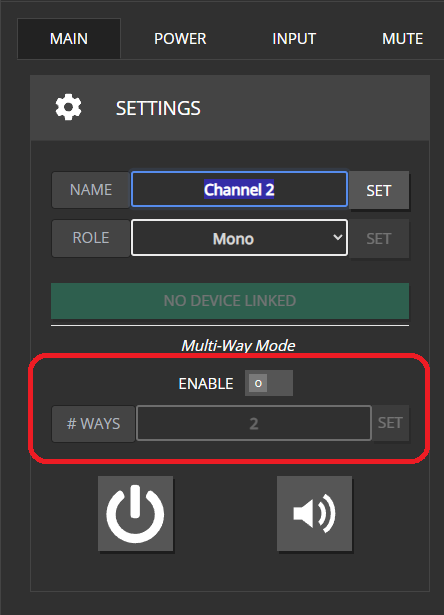
Alternatively, you can toggle multi-way mode for existing channels in the MAIN tab of the Channel-Edit Modal. When toggling the ENABLE switch, a popup will appear asking you to confirm the changes to be made. The same goes for changing the channel-way count on an existing multi-way channel. Set the desired number of ways and hit the SET button. A popup will appear, asking to confirm the changes.
When enabling multi-way mode, the target channel will receive the number of ways, set in the input field below. Note that you can also change the value of the way-count-input while multi-way mode is still disabled. That way, you can already set the desired number of channel-ways before enabling multi-way mode.
Editing the multi-way configuration of an existing channel will be prohibited in case the target channel is already linked to a device. Unlink such channels before editing their configuration. Further information in the Linking and Speaker-Device sections.
Channel-Ways are always linked to their parent-channels. You cannot manually delete them, or assign them to another channel. They will only be removed when their parent-channel is deleted, when multi-way mode is disabled for their parent-channel, or when they become obsolete after reducing their parent-channel’s channel-way count.
Naming-Convention
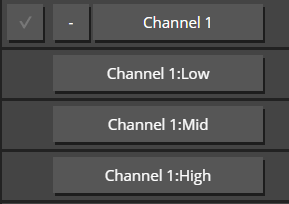
Channel-Ways don’t have individual, editable names. They are named using their parent-channel’s name and their designated channel-way-role. For the available multi-way configurations, the designated roles are as follows:
- 2-Way: Low, High
- 3-Way: Low, Mid, High
- 4-Way: Sub, Low, Mid, High
Linking Multi-Way Channels to Devices
Linking multi-way channels works mostly the same as with regular channels (Quickt-Start)
 In the Linking modal, multi-way channels have an additional box displaying their way-count.
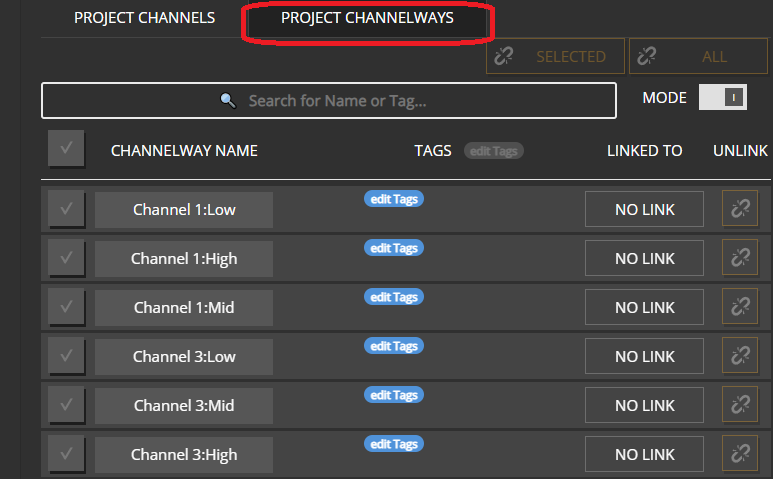 Additionally, the PROJECT CHANNEL side of the modal now offers a second PROJECT CHANNELWAYS tab which displays all the individual ways of multi-way channels.
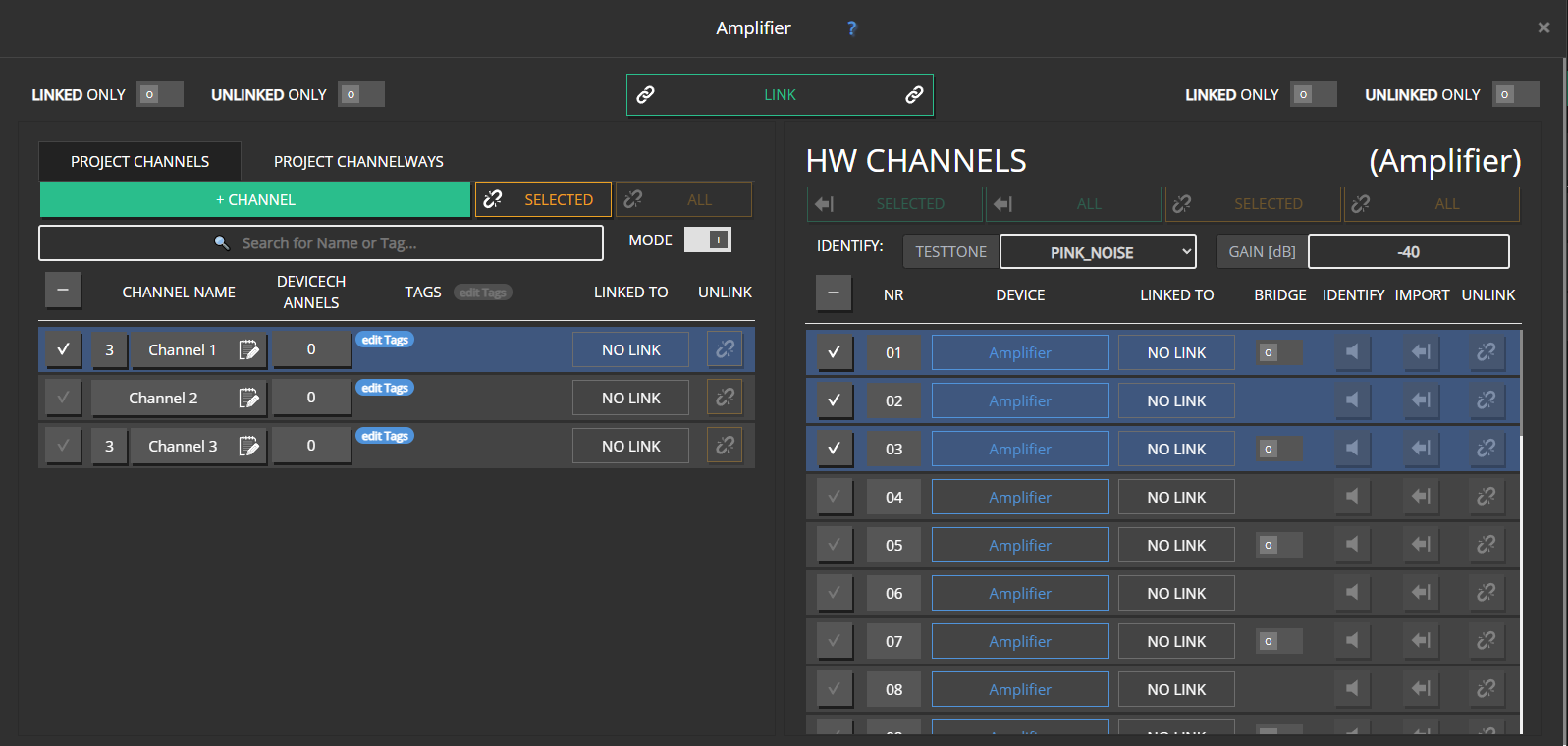 When linking multi-way channels in the PROJECT CHANNELS tab, you have to select the appropriate number of DEVICE-CHANNELS to unlock the LINK button (3-way channel -> 3 device-channels).
When linking via drag&drop:
- Dragging a multi-way channel will highlight the respective number of device-channels. (3-way channel -> 3 device-channels)
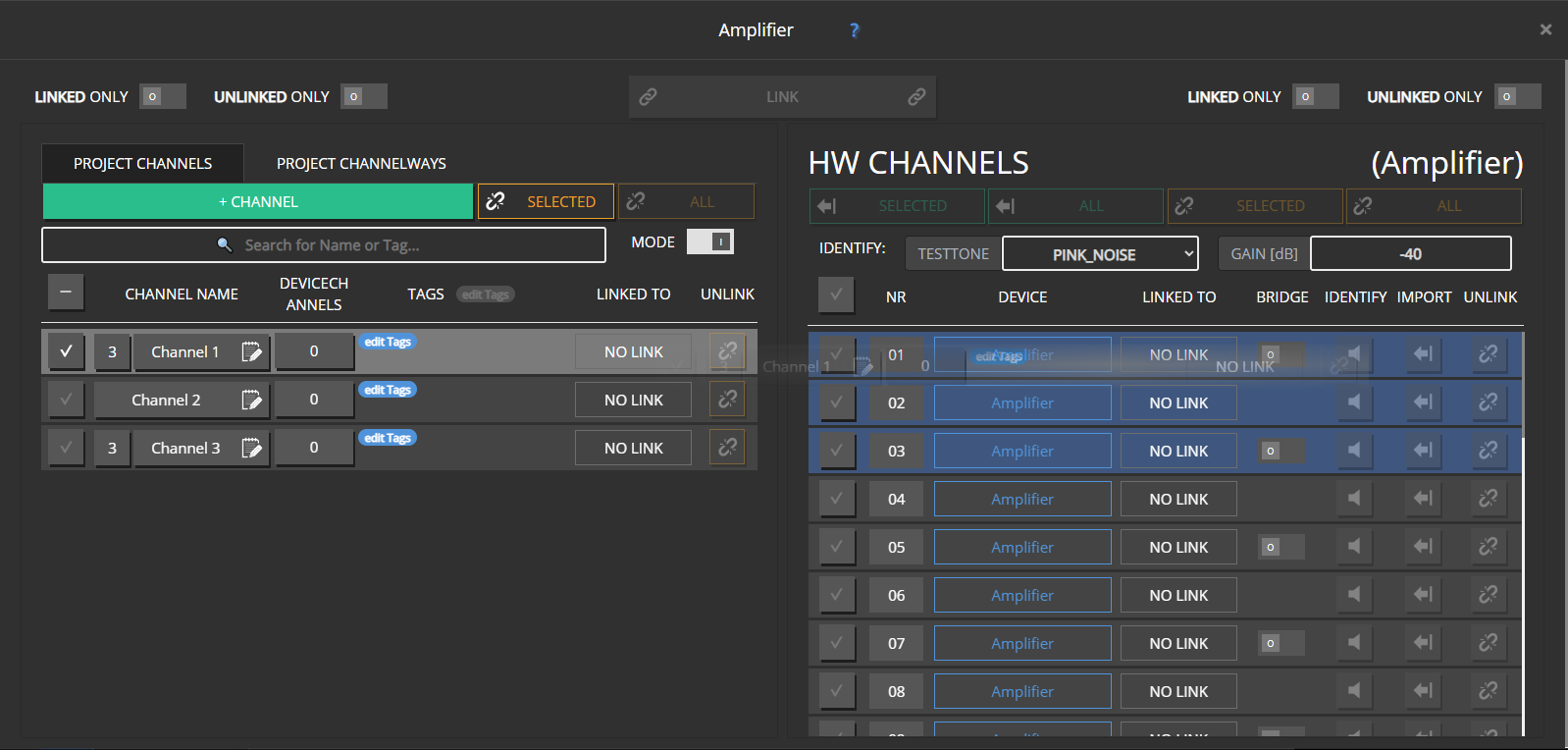
- When dragging device-channels over a multi-way channel, the number of device-channels needs to match with the number of channel-ways.
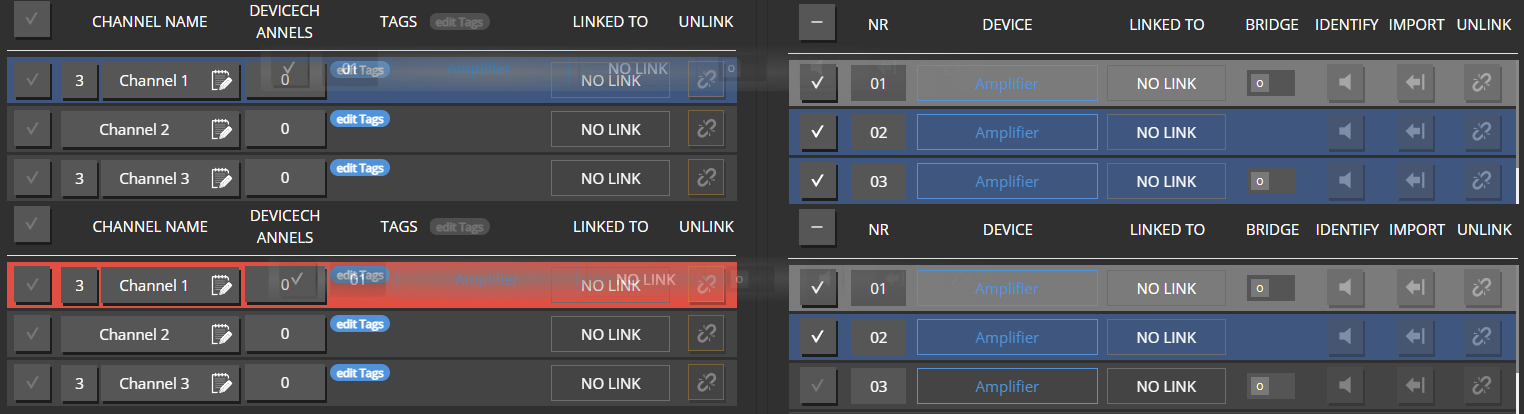
- Any additional device-channels will be applied to the next project-channel in line. If it is also a multi-way channel, the same rule applies as mentioned above.
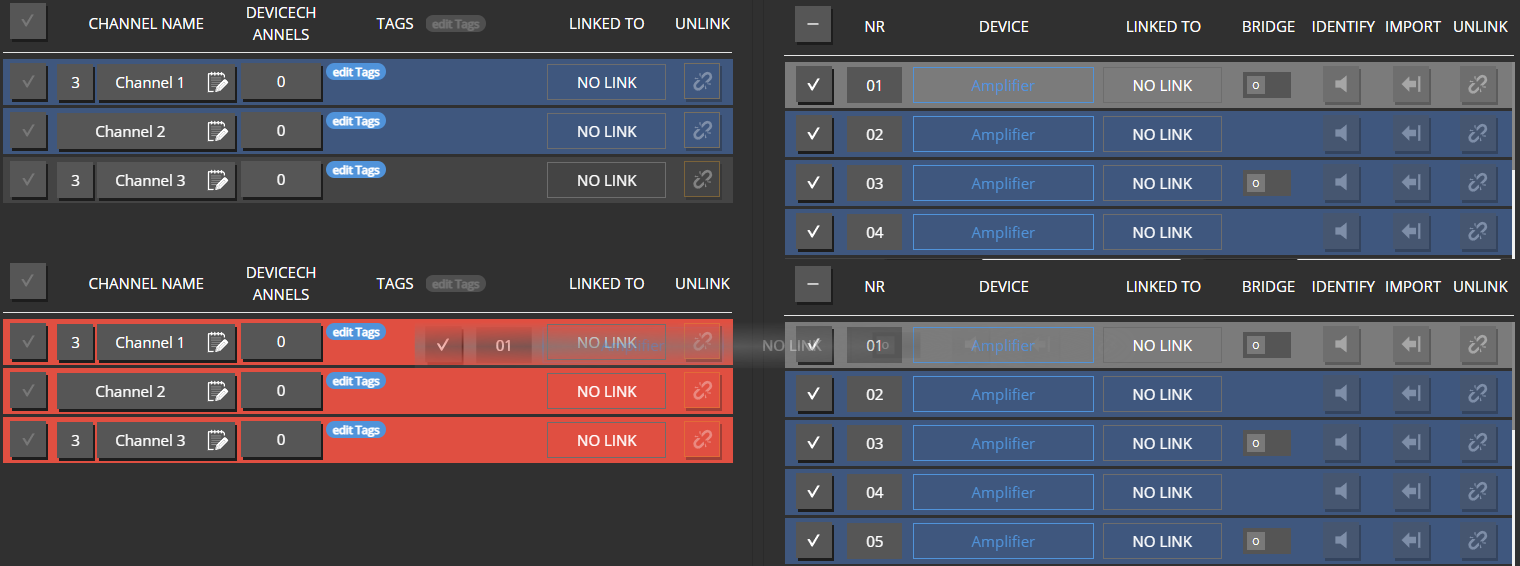
- When linking multi-way channels as a whole, device-channels are linked in the order they are listed to the individual channel-ways from low to high.

If you want or need to link individual channel-ways to different devices or not in the standard order as stated above, you can change to the PROJECT CHANNELWAYS tab. Here, linking channel-ways works just the same as with “regular” (i.e. non-multi-way) PROJECT-CHANNELS.
Changing the way-config for already linked channels was disabled, in order to help you NOT loose track of the connections between your channels and devices. Linking individual channel-ways independent from each other has to be done intentionally via the PROJECT-CHANNELWAYS tab. You will be aware of loose links as long as the modal is active. Changing the config for an already linked channel would result in loose links (i.e. unlinked channel-ways or device-channels), while you potentially might not immediately be aware of them.
Speaker Devices
For future hardware, there will also be the possibility to add a predefined channel-way configuration. For example a 3-channel amplifier could be configured to behave like a 3-way speaker, propagating only one device-channel, while internally all 3 amplifier channels are assigned pre-defined roles (i.e low, mid, high).
For such devices, it is not possible to link individual channel-ways. A fitting multi-way channel needs to be linked to it as a whole.
When opnening the channel-linking modal for such devices, MAXX-Remote will already filter the PROJECT-CHANNEL side for multi-way channels with the corresponding number of channel-ways. The number of ways for a speaker device will be displayed next to the device’s name. (Same as with multi-way channels)
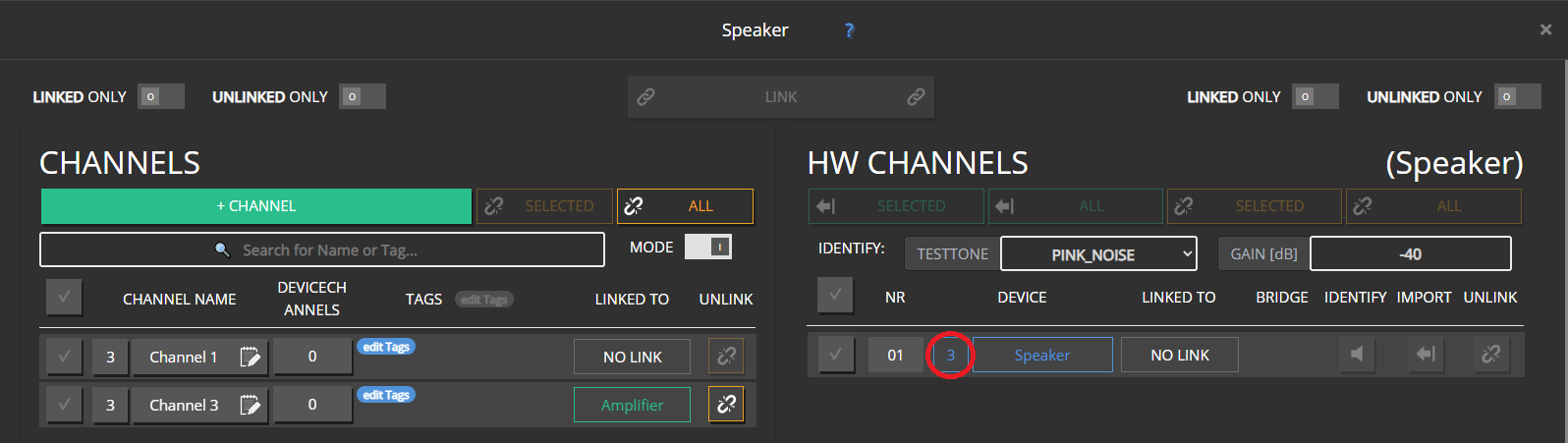
Linking multi-way channels and speaker devices behaves the same as linking regular project-channels and regular device-channels.
Speaker devices are another reasons we disabled changing the way-config for already linked channels. Since it is not allowed to link individual ways for speaker devices, changing the way-config of a channel already linked to a speaker device would result in such a condition. (i.e. either unlinked, additional channel-ways on the project-channel side, or one or more unlinked ways on the speaker device side)
Data Hierarchy
The relation between the data of a channel-way and its parent-channel is pretty much the same as between a regular project-channel and a group. For data with limited ressources (i.e. Limiters, FIR, EQ, Speaker Detection) on the hardware side, a channel-way’s own settings will always take precedence over its parent-channel’s. As long as ressources are available and the endresult is within the allowed constraints, channel-ways will combine their parent-channel’s data with their own.
Note that just as well a parent-channel’s data can already be the accumulated result of its own data, and that of the groups it is mapped to.
Differences between regular Channels and Multi-Way Channels
Both in the channel-overview page, and the channel-edit modal, there are a few differences between regular project-channels, channel-ways and their parent-channel.
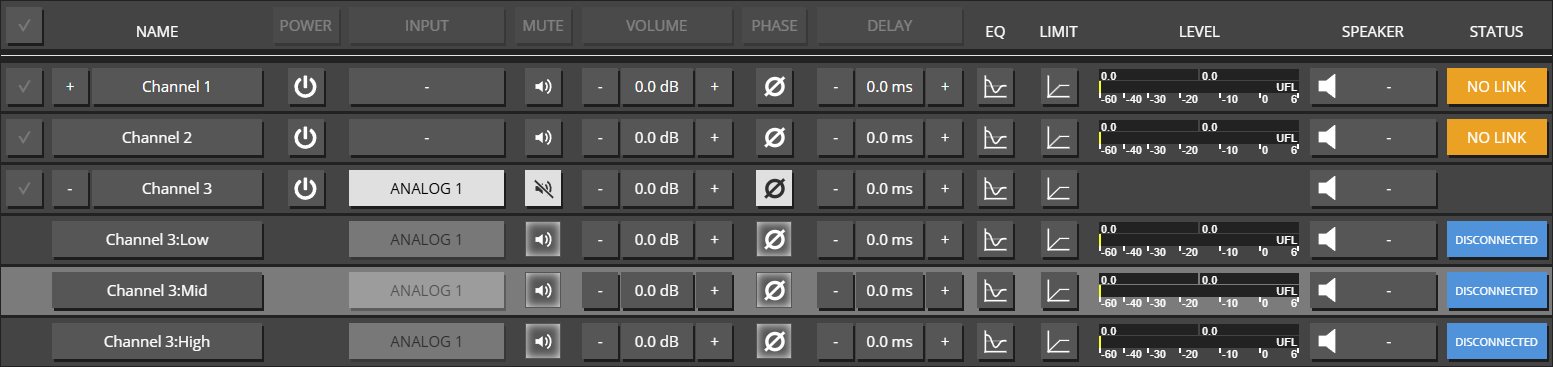 In the overview page:
- Channel-Ways are excluded from selection. (all data-changes that should affect all ways of a multi-way channel, can be performed on the parent-channel)
- Channel-Ways in general do not have an individual power control.
- The INPUT button for channel-ways is read-only (all input patches are adopted from the parent-channel)
- When extended, a parent-channel will not display a level-meter or status-box.
- The level-meter of a parent-channel will display the group-level of it’s channel-ways
- the STATUS box of a parent will display the combined status of its chanhnel-ways
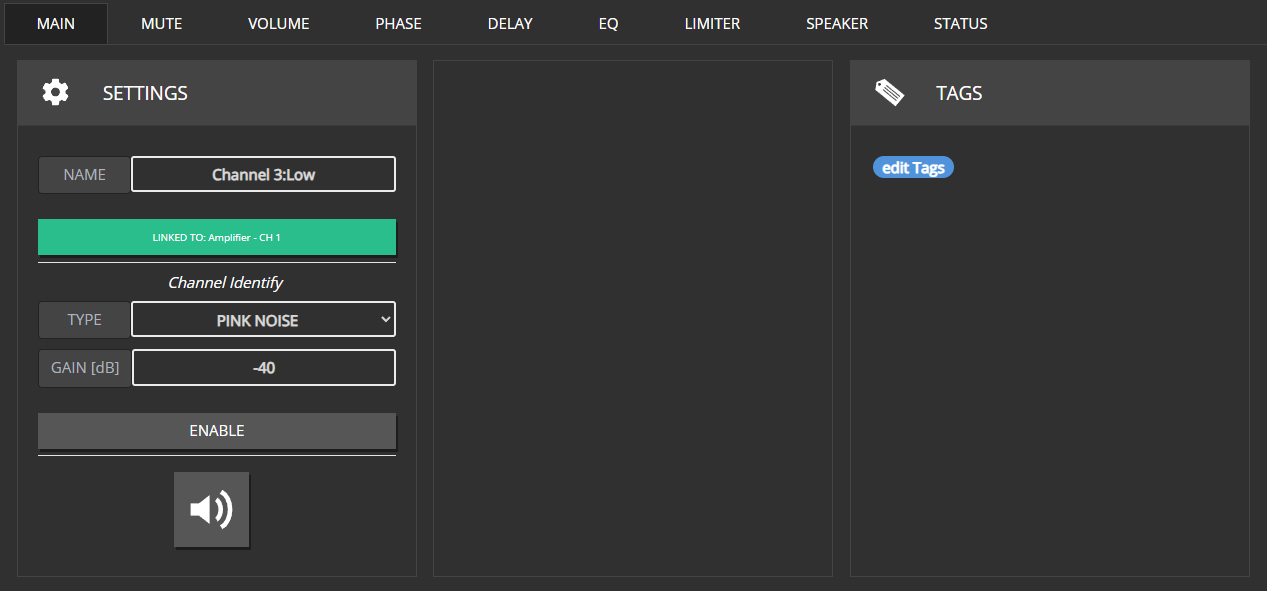 The edit modal for channel-ways has no POWER and INPUT tabs (all input patches are adopted from the parent-channel)
The MAIN tab of channel-ways:
- will not show any group related information.
- has a read-only name field.
- has no output-setup related channel-role setting.
- excludes the multi-way configuration section.
- has no power control.
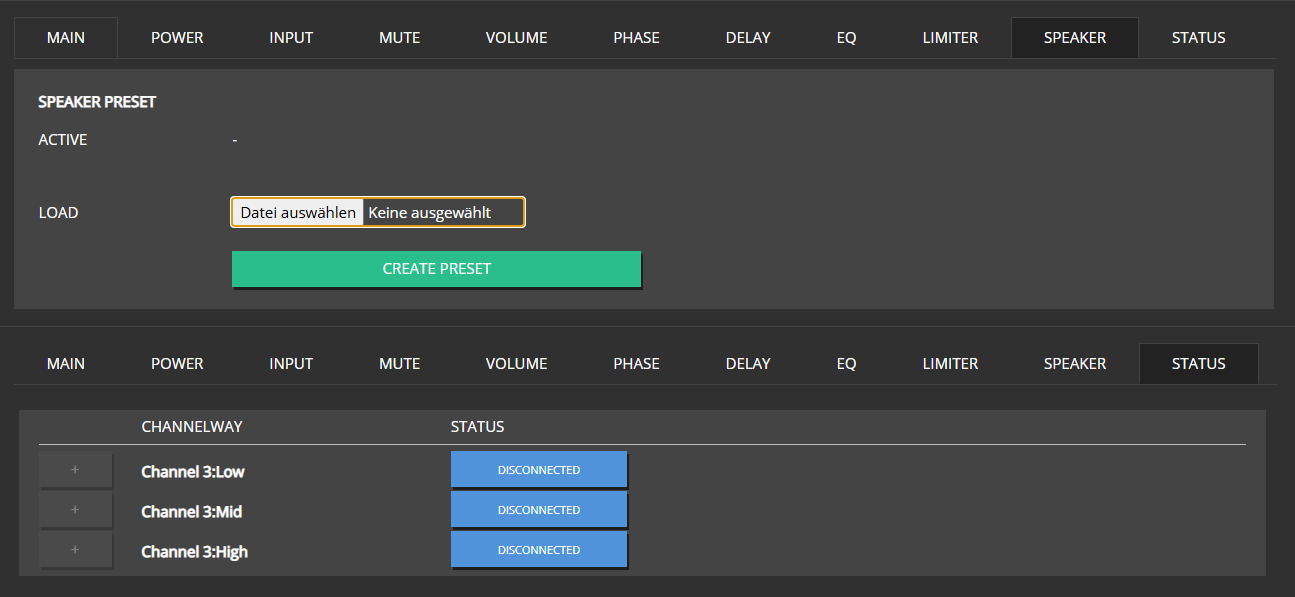 The edit modal for parent-channels:
- Will not include speaker detection controls in the SPEAKER tab. Since detection settings/values will vary quite a bit between individual channel-ways - depending on their role and the connected type of driver/speaker - a one-for-all approach will not yield any useful results. Thus, these controls are not displayed in the first place.
- Will display their channel-ways’ status data in the STATUS tab (Just as groups will for all their mapped channels)