What we call MAXX-CONTROL is basically a static webpage hosted on each device for easy access out of every web browser. The webpage controls the amplifier by utilizing its fully open REST-API

This is the multi-page printable view of this section. Click here to print.
What we call MAXX-CONTROL is basically a static webpage hosted on each device for easy access out of every web browser. The webpage controls the amplifier by utilizing its fully open REST-API
All function, the devices offers are available via the integrated REST-API.
The API is based on HTTP PUT / GET / OPTIONS / DELETE calls with JSON payload.
Every PUT / DELETE call has to be verified via a “Authentication Token” in the HTTP header. The default token is: “f4005bf8507999192162d989d5a60823”
This documentation is more dedicated as general overview and description how to handle the API. Each device includes the latest API-Documentation with all available calls.
It can be found on the lower right corner of the OVERVIEW page:
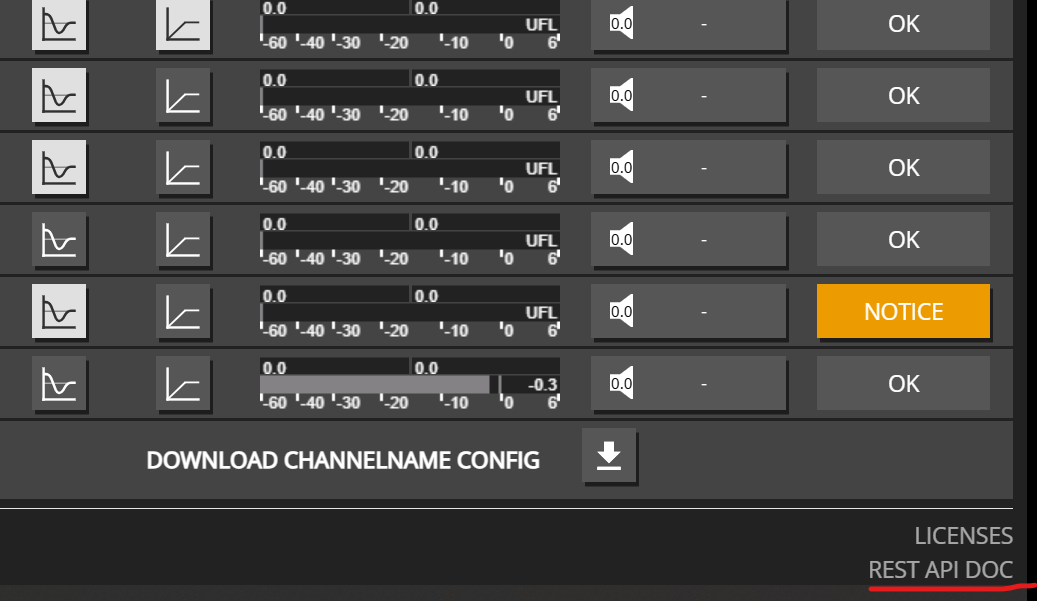
It’s an hierarchical REST API with partial resource updates, structured per channel and it’s corresponding resources like DSP / EQ / VOLUME / etc.
That means you can basically update the whole device with up to 32 channels, with a single HTTP PUT call like a HTTP PUT on http://{IP}/rest-api/settings with a json payload containing the requested structure.
On the other hand, update single resources down in the tree is also possible, e.g. http://{IP}/rest-api/settings/channel/1/ampenable
Channel names help you identify and organize your amplifier channels. Names can contain alphanumeric characters, spaces, and special characters.
Retrieve the current name of a channel:
curl -X 'GET' http://${IP}/rest-api/settings/channel/1/name{
"value": "Living Room Left"
}Set or update the name of a channel. Channel names can be up to 256 characters and support:
äöü:_()!%+*#-curl -X 'PUT' http://${IP}/rest-api/settings/channel/1/name \
-H 'Content-Type: application/json' \
-H 'token: f4005bf8507999192162d989d5a60823' \
-d '{
"value": "Living Room Left"
}'{
"value": "Living Room Left"
}Set names for multiple channels in a single request:
curl -X 'PUT' http://${IP}/rest-api/settings/channel/ \
-H 'Content-Type: application/json' \
-H 'token: f4005bf8507999192162d989d5a60823' \
-d '[
  {
    "channel_id": 1,
    "name": {
      "value": "Living Room Left"
    }
  },
  {
    "channel_id": 2,
    "name": {
      "value": "Living Room Right"
    }
  },
  {
    "channel_id": 3,
    "name": {
      "value": "Kitchen"
    }
  },
  {
    "channel_id": 4,
    "name": {
      "value": "Bedroom"
    }
  }
]'
[
{
"channel_id": 1,
"name": {
"value": "Living Room Left"
}
},
{
"channel_id": 2,
"name": {
"value": "Living Room Right"
}
},
{
"channel_id": 3,
"name": {
"value": "Kitchen"
}
},
{
"channel_id": 4,
"name": {
"value": "Bedroom"
}
}
]Check the maximum allowed length for channel names:
curl -X 'OPTIONS' http://${IP}/rest-api/settings/channel/1/name{
"length": 256
}Here’s a practical example for naming channels in a multi-zone audio system:
curl -X 'PUT' http://${IP}/rest-api/settings/channel/ \
-H 'Content-Type: application/json' \
-H 'token: f4005bf8507999192162d989d5a60823' \
-d '[
  {
    "channel_id": 1,
    "name": {
      "value": "Zone 1 - Main"
    }
  },
  {
    "channel_id": 2,
    "name": {
      "value": "Zone 2 - Kitchen"
    }
  },
  {
    "channel_id": 3,
    "name": {
      "value": "Zone 3 - Bedroom"
    }
  },
  {
    "channel_id": 4,
    "name": {
      "value": "Zone 4 - Office"
    }
  }
]'
[
{
"channel_id": 1,
"name": {
"value": "Zone 1 - Main"
}
},
{
"channel_id": 2,
"name": {
"value": "Zone 2 - Kitchen"
}
},
{
"channel_id": 3,
"name": {
"value": "Zone 3 - Bedroom"
}
},
{
"channel_id": 4,
"name": {
"value": "Zone 4 - Office"
}
}
]Tip: Use descriptive channel names to make your system easier to manage, especially when integrating with home automation systems or control interfaces.
Device-level controls affect all channels globally. These are useful for master volume control, emergency mute, and startup behavior configuration.
The device mute acts as a master mute that affects all channels, regardless of individual channel mute settings.
curl -X 'GET' http://${IP}/rest-api/settings/device/dsp/mute{
"value": false
}curl -X 'PUT' http://${IP}/rest-api/settings/device/dsp/mute \
-H 'Content-Type: application/json' \
-H 'token: f4005bf8507999192162d989d5a60823' \
-d '{
"value": true
}'curl -X 'PUT' http://${IP}/rest-api/settings/device/dsp/mute \
-H 'Content-Type: application/json' \
-H 'token: f4005bf8507999192162d989d5a60823' \
-d '{
"value": false
}'The device volume acts as a master volume control that affects all channels. Individual channel volumes are relative to this setting.
curl -X 'GET' http://${IP}/rest-api/settings/device/dsp/volume{
"value": 0.0
}curl -X 'PUT' http://${IP}/rest-api/settings/device/dsp/volume \
-H 'Content-Type: application/json' \
-H 'token: f4005bf8507999192162d989d5a60823' \
-d '{
"value": -5.0
}'{
"value": -5.0
}Note: Device volume range is -72.0 dB to +24.0 dB. This setting affects all channels globally.
Configure whether the device should start muted after a reboot or power cycle.
curl -X 'GET' http://${IP}/rest-api/settings/device/dsp/startupmute{
"value": false
}When enabled, the device will start muted after reboot or power cycle:
curl -X 'PUT' http://${IP}/rest-api/settings/device/dsp/startupmute \
-H 'Content-Type: application/json' \
-H 'token: f4005bf8507999192162d989d5a60823' \
-d '{
  "value": true
}'
curl -X 'PUT' http://${IP}/rest-api/settings/device/dsp/startupmute \
-H 'Content-Type: application/json' \
-H 'token: f4005bf8507999192162d989d5a60823' \
-d '{
"value": false
}'Use Case: Enable startup mute to prevent audio from playing immediately after power restoration, giving you time to verify system status before audio begins.
Here’s an example that combines multiple device-level controls:
# Set device to start muted
curl -X 'PUT' http://${IP}/rest-api/settings/device/dsp/startupmute \
-H 'Content-Type: application/json' \
-H 'token: f4005bf8507999192162d989d5a60823' \
-d '{"value": true}'

# Set master volume to a safe level
curl -X 'PUT' http://${IP}/rest-api/settings/device/dsp/volume \
-H 'Content-Type: application/json' \
-H 'token: f4005bf8507999192162d989d5a60823' \
-d '{"value": -10.0}'

# Unmute device when ready
curl -X 'PUT' http://${IP}/rest-api/settings/device/dsp/mute \
-H 'Content-Type: application/json' \
-H 'token: f4005bf8507999192162d989d5a60823' \
-d '{"value": false}'The device information endpoint provides details about your amplifier model, available channels, installed options, and hardware features.
Retrieve all device information with a simple GET request:
curl -X 'GET' http://${IP}/rest-api/info/device{
"model_name": "MA32D",
"channel": 32,
"options": ["IF1", "IF2", "D1", "D2"],
"psu_fan": true,
"housing_fan": true
}IF1, IF2, IF3: Interface optionsD1, D2, D3: Dante optionsM1: Additional optionsThis information is useful for:
The EQ enable control allows you to turn the entire channel equalizer on or off. This is useful when you want to temporarily bypass all EQ processing for testing or when switching between different audio processing modes.
Enable the equalizer for multiple channels in a single request:
curl -X 'PUT' http://${IP}/rest-api/settings/channel/ \
-H 'Content-Type: application/json' \
-H 'token: f4005bf8507999192162d989d5a60823' \
-d '[
  {
    "channel_id": 1,
    "dsp": {
      "eqenable": {
        "value": true
      }
    }
  },
  {
    "channel_id": 2,
    "dsp": {
      "eqenable": {
        "value": true
      }
    }
  },
  {
    "channel_id": 3,
    "dsp": {
      "eqenable": {
        "value": true
      }
    }
  }
]'
[
{
"channel_id": 1,
"dsp": {
"eqenable": {
"value": true
}
}
},
{
"channel_id": 2,
"dsp": {
"eqenable": {
"value": true
}
}
},
{
"channel_id": 3,
"dsp": {
"eqenable": {
"value": true
}
}
}
]Disable the equalizer for multiple channels:
curl -X 'PUT' http://${IP}/rest-api/settings/channel/ \
-H 'Content-Type: application/json' \
-H 'token: f4005bf8507999192162d989d5a60823' \
-d '[
  {
    "channel_id": 1,
    "dsp": {
      "eqenable": {
        "value": false
      }
    }
  },
  {
    "channel_id": 2,
    "dsp": {
      "eqenable": {
        "value": false
      }
    }
  },
  {
    "channel_id": 3,
    "dsp": {
      "eqenable": {
        "value": false
      }
    }
  }
]'
[
{
"channel_id": 1,
"dsp": {
"eqenable": {
"value": false
}
}
},
{
"channel_id": 2,
"dsp": {
"eqenable": {
"value": false
}
}
},
{
"channel_id": 3,
"dsp": {
"eqenable": {
"value": false
}
}
}
]Enable or disable EQ for a single channel:
curl -X 'PUT' http://${IP}/rest-api/settings/channel/1/dsp/eqenable \
-H 'Content-Type: application/json' \
-H 'token: f4005bf8507999192162d989d5a60823' \
-d '{
  "value": true
}'
curl -X 'PUT' http://${IP}/rest-api/settings/channel/1/dsp/eqenable \
-H 'Content-Type: application/json' \
-H 'token: f4005bf8507999192162d989d5a60823' \
-d '{
"value": false
}'Check if EQ is enabled for a channel:
curl -X 'GET' http://${IP}/rest-api/settings/channel/1/dsp/eqenable{
"value": true
}Example for controlling EQ across multiple zones (channels 1, 2, 3, 11, 12, 13):
curl -X 'PUT' http://${IP}/rest-api/settings/channel/ \
-H 'Content-Type: application/json' \
-H 'token: f4005bf8507999192162d989d5a60823' \
-d '[
  {
    "channel_id": 1,
    "dsp": {
      "eqenable": {
        "value": true
      }
    }
  },
  {
    "channel_id": 2,
    "dsp": {
      "eqenable": {
        "value": true
      }
    }
  },
  {
    "channel_id": 3,
    "dsp": {
      "eqenable": {
        "value": true
      }
    }
  },
  {
    "channel_id": 11,
    "dsp": {
      "eqenable": {
        "value": true
      }
    }
  },
  {
    "channel_id": 12,
    "dsp": {
      "eqenable": {
        "value": true
      }
    }
  },
  {
    "channel_id": 13,
    "dsp": {
      "eqenable": {
        "value": true
      }
    }
  }
]'
[
{
"channel_id": 1,
"dsp": {
"eqenable": {
"value": true
}
}
},
{
"channel_id": 2,
"dsp": {
"eqenable": {
"value": true
}
}
},
{
"channel_id": 3,
"dsp": {
"eqenable": {
"value": true
}
}
},
{
"channel_id": 11,
"dsp": {
"eqenable": {
"value": true
}
}
},
{
"channel_id": 12,
"dsp": {
"eqenable": {
"value": true
}
}
},
{
"channel_id": 13,
"dsp": {
"eqenable": {
"value": true
}
}
}
]Note: When EQ is disabled, all equalizer settings (filters, gains, etc.) are bypassed, but the settings themselves are preserved. Re-enabling EQ will restore the previous equalizer configuration.
Mute control allows you to silence individual channels or the entire device.
Check if a channel is currently muted:
curl -X 'GET' http://${IP}/rest-api/settings/channel/1/dsp/mute{
"value": false
}Mute a specific channel:
curl -X 'PUT' http://${IP}/rest-api/settings/channel/1/dsp/mute \
-H 'Content-Type: application/json' \
-H 'token: f4005bf8507999192162d989d5a60823' \
-d '{
  "value": true
}'
{
"value": true
}Unmute a specific channel:
curl -X 'PUT' http://${IP}/rest-api/settings/channel/1/dsp/mute \
-H 'Content-Type: application/json' \
-H 'token: f4005bf8507999192162d989d5a60823' \
-d '{
  "value": false
}'
{
"value": false
}Mute or unmute multiple channels in a single request:
curl -X 'PUT' http://${IP}/rest-api/settings/channel/ \
-H 'Content-Type: application/json' \
-H 'token: f4005bf8507999192162d989d5a60823' \
-d '[
  {
    "channel_id": 1,
    "dsp": {
      "mute": {
        "value": true
      }
    }
  },
  {
    "channel_id": 2,
    "dsp": {
      "mute": {
        "value": true
      }
    }
  },
  {
    "channel_id": 3,
    "dsp": {
      "mute": {
        "value": true
      }
    }
  }
]'
[
{
"channel_id": 1,
"dsp": {
"mute": {
"value": true
}
}
},
{
"channel_id": 2,
"dsp": {
"mute": {
"value": true
}
}
},
{
"channel_id": 3,
"dsp": {
"mute": {
"value": true
}
}
}
]Toggle mute state for multiple channels (mute some, unmute others):
curl -X 'PUT' http://${IP}/rest-api/settings/channel/ \
-H 'Content-Type: application/json' \
-H 'token: f4005bf8507999192162d989d5a60823' \
-d '[
  {
    "channel_id": 1,
    "dsp": {
      "mute": {
        "value": true
      }
    }
  },
  {
    "channel_id": 2,
    "dsp": {
      "mute": {
        "value": false
      }
    }
  }
]'
[
{
"channel_id": 1,
"dsp": {
"mute": {
"value": true
}
}
},
{
"channel_id": 2,
"dsp": {
"mute": {
"value": false
}
}
}
]Control the main device mute that affects all channels:
curl -X 'GET' http://${IP}/rest-api/settings/device/dsp/mute{
"value": false
}curl -X 'PUT' http://${IP}/rest-api/settings/device/dsp/mute \
-H 'Content-Type: application/json' \
-H 'token: f4005bf8507999192162d989d5a60823' \
-d '{
"value": true
}'curl -X 'PUT' http://${IP}/rest-api/settings/device/dsp/mute \
-H 'Content-Type: application/json' \
-H 'token: f4005bf8507999192162d989d5a60823' \
-d '{
"value": false
}'Note: Device mute acts as a master mute control. When device mute is enabled, all channels are muted regardless of individual channel mute settings.
Volume control is one of the most common operations. You can control individual channels or multiple channels at once.
Retrieve the current volume setting for a specific channel:
curl -X 'GET' http://${IP}/rest-api/settings/channel/1/dsp/volume{
"value": -10.5
}Set the volume for a single channel. Volume range is -72.0 dB to +24.0 dB:
curl -X 'PUT' http://${IP}/rest-api/settings/channel/1/dsp/volume \
-H 'Content-Type: application/json' \
-H 'token: f4005bf8507999192162d989d5a60823' \
-d '{
  "value": -10.5
}'
{
"value": -10.5
}Update volumes for multiple channels in a single request. This is more efficient than individual calls:
curl -X 'PUT' http://${IP}/rest-api/settings/channel/ \
-H 'Content-Type: application/json' \
-H 'token: f4005bf8507999192162d989d5a60823' \
-d '[
  {
    "channel_id": 1,
    "dsp": {
      "volume": {
        "value": -10.5
      }
    }
  },
  {
    "channel_id": 2,
    "dsp": {
      "volume": {
        "value": -12.0
      }
    }
  },
  {
    "channel_id": 3,
    "dsp": {
      "volume": {
        "value": -8.5
      }
    }
  }
]'
[
{
"channel_id": 1,
"dsp": {
"volume": {
"value": -10.5
}
}
},
{
"channel_id": 2,
"dsp": {
"volume": {
"value": -12.0
}
}
},
{
"channel_id": 3,
"dsp": {
"volume": {
"value": -8.5
}
}
}
]Check the valid volume range and step size for a channel:
curl -X 'OPTIONS' http://${IP}/rest-api/settings/channel/1/dsp/volume{
"value": [-72.0, 24.0, 0.1, "dB"]
}The response format is [MIN, MAX, STEP, UNIT]:
Control the main device volume that affects all channels:
curl -X 'GET' http://${IP}/rest-api/settings/device/dsp/volume{
"value": 0.0
}curl -X 'PUT' http://${IP}/rest-api/settings/device/dsp/volume \
-H 'Content-Type: application/json' \
-H 'token: f4005bf8507999192162d989d5a60823' \
-d '{
"value": -5.0
}'{
"value": -5.0
}Note: Device volume acts as a master volume control affecting all channels. Individual channel volumes are relative to this device volume setting.
When switching between Inputs, there are multiple approaches valid:
Example Configuration for CH1, CH2, CH4, CH7, switch between Dante Input 1-4 and Dante Input 21-24
HTTP Put a full json object containing all affected Channels into the http://${IP}/rest-api/settings/channel/ path
Advantage: Using the bulk endpoint
/settings/channel/allows you to patch multiple channels in a single HTTP call, which is more efficient than making individual calls for each channel. This reduces network overhead and ensures all channels are updated atomically.
To determine the source_id of the desired Interfaces, perform an HTTP OPTION call to http://${IP}/rest-api/settings/channel/1/dsp/patch' to get a list of available interfaces.
[
  {
    "channel_id": 1,
    "dsp": {
      "patch": [
        {
          "patch_id": 1,
          "source_id": 4,
          "channel": 1
        }
      ]
    }
  },
  {
    "channel_id": 2,
    "dsp": {
      "patch": [
        {
          "patch_id": 1,
          "source_id": 4,
          "channel": 2
        }
      ]
    }
  },
  {
    "channel_id": 4,
    "dsp": {
      "patch": [
        {
          "patch_id": 1,
          "source_id": 4,
          "channel": 3
        }
      ]
    }
  },
  {
    "channel_id": 7,
    "dsp": {
      "patch": [
        {
          "patch_id": 1,
          "source_id": 4,
          "channel": 4
        }
      ]
    }
  }
][
{
"channel_id": 1,
"dsp": {
"patch": [
{
"patch_id": 1,
"source_id": 4,
"channel": 21,
"gain": 0.0,
"mute": false
}
]
}
},
{
"channel_id": 2,
"dsp": {
"patch": [
{
"patch_id": 1,
"source_id": 4,
"channel": 22,
"gain": 0.0,
"mute": false
}
]
}
},
{
"channel_id": 4,
"dsp": {
"patch": [
{
"patch_id": 1,
"source_id": 4,
"channel": 23,
"gain": 0.0,
"mute": false
}
]
}
},
{
"channel_id": 7,
"dsp": {
"patch": [
{
"patch_id": 1,
"source_id": 4,
"channel": 24,
"gain": 0.0,
"mute": false
}
]
}
}
]Alternatively, you can patch each channel individually by making separate HTTP PUT calls to each channel’s endpoint: http://${IP}/rest-api/settings/channel/{channel_id}/
This approach allows you to update channels one at a time, which can be useful when you need to patch channels conditionally or handle errors per channel.
curl -X 'PUT' http://${IP}/rest-api/settings/channel/1/ \
-H 'Content-Type: application/json' \
-H 'token: f4005bf8507999192162d989d5a60823' \
-d '{
  "channel_id": 1,
  "dsp": {
    "patch": [
      {
        "patch_id": 1,
        "source_id": 4,
        "channel": 1
      }
    ]
  }
}'
curl -X 'PUT' http://${IP}/rest-api/settings/channel/2/ \
-H 'Content-Type: application/json' \
-H 'token: f4005bf8507999192162d989d5a60823' \
-d '{
"channel_id": 2,
"dsp": {
"patch": [
{
"patch_id": 1,
"source_id": 4,
"channel": 2
}
]
}
}'curl -X 'PUT' http://${IP}/rest-api/settings/channel/4/ \
-H 'Content-Type: application/json' \
-H 'token: f4005bf8507999192162d989d5a60823' \
-d '{
"channel_id": 4,
"dsp": {
"patch": [
{
"patch_id": 1,
"source_id": 4,
"channel": 3
}
]
}
}'curl -X 'PUT' http://${IP}/rest-api/settings/channel/7/ \
-H 'Content-Type: application/json' \
-H 'token: f4005bf8507999192162d989d5a60823' \
-d '{
"channel_id": 7,
"dsp": {
"patch": [
{
"patch_id": 1,
"source_id": 4,
"channel": 4
}
]
}
}'curl -X 'PUT' http://${IP}/rest-api/settings/channel/1/ \
-H 'Content-Type: application/json' \
-H 'token: f4005bf8507999192162d989d5a60823' \
-d '{
"channel_id": 1,
"dsp": {
"patch": [
{
"patch_id": 1,
"source_id": 4,
"channel": 21,
"gain": 0.0,
"mute": false
}
]
}
}'curl -X 'PUT' http://${IP}/rest-api/settings/channel/2/ \
-H 'Content-Type: application/json' \
-H 'token: f4005bf8507999192162d989d5a60823' \
-d '{
"channel_id": 2,
"dsp": {
"patch": [
{
"patch_id": 1,
"source_id": 4,
"channel": 22,
"gain": 0.0,
"mute": false
}
]
}
}'curl -X 'PUT' http://${IP}/rest-api/settings/channel/4/ \
-H 'Content-Type: application/json' \
-H 'token: f4005bf8507999192162d989d5a60823' \
-d '{
"channel_id": 4,
"dsp": {
"patch": [
{
"patch_id": 1,
"source_id": 4,
"channel": 23,
"gain": 0.0,
"mute": false
}
]
}
}'curl -X 'PUT' http://${IP}/rest-api/settings/channel/7/ \
-H 'Content-Type: application/json' \
-H 'token: f4005bf8507999192162d989d5a60823' \
-d '{
"channel_id": 7,
"dsp": {
"patch": [
{
"patch_id": 1,
"source_id": 4,
"channel": 24,
"gain": 0.0,
"mute": false
}
]
}
}'Assuming we’ve already patched our desired Inputs for each channel on Slot 1 and 2 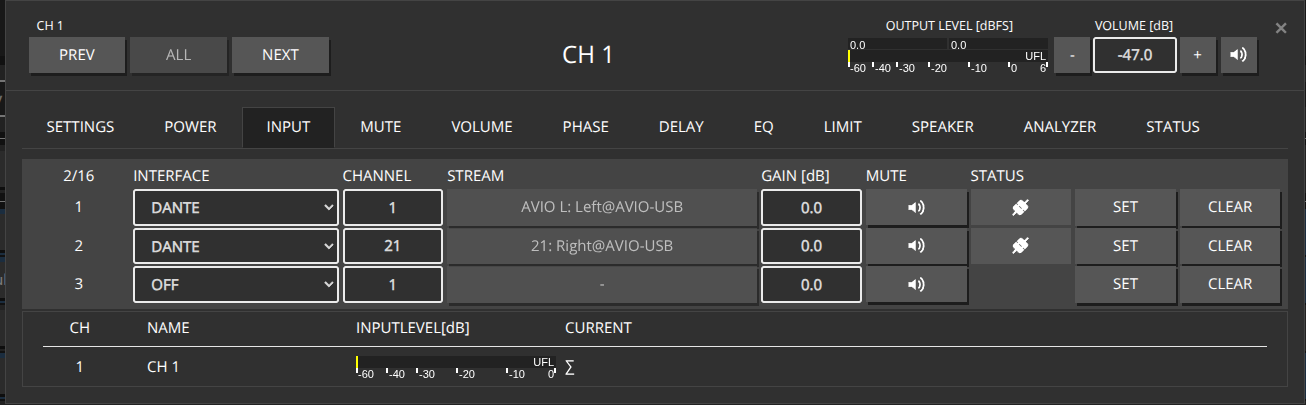
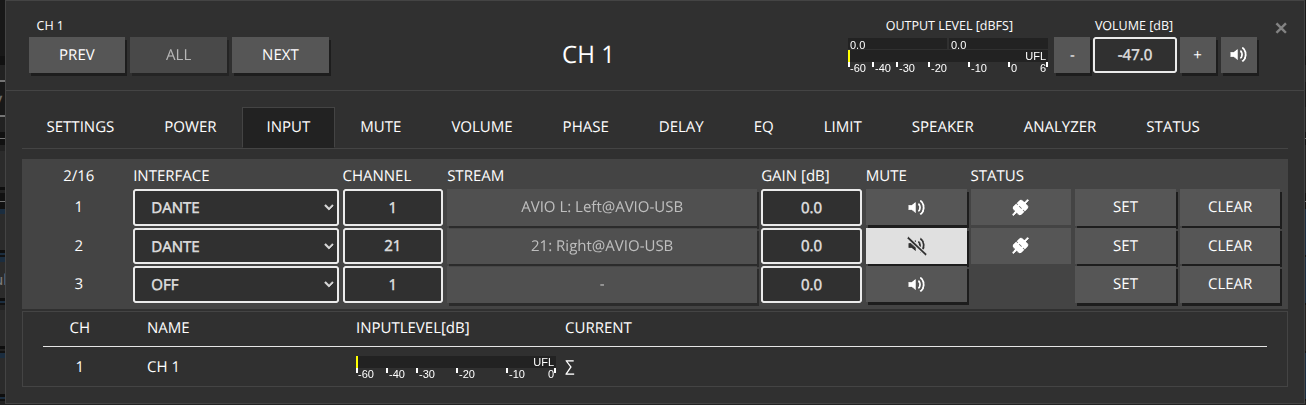
When inputs are already patched, you can toggle the mute state between different patch slots (e.g., Slot 1 and Slot 2) by only updating the mute flag in the patch object. This is more efficient than repatching the entire input configuration.
HTTP Put a JSON object containing all affected Channels into the http://${IP}/rest-api/settings/channel/ path, specifying only the patch_id and mute flag for each patch slot.
[
  {
    "channel_id": 1,
    "dsp": {
      "patch": [
        {
          "patch_id": 1,
          "mute": true
        },
        {
          "patch_id": 2,
          "mute": false
        }
      ]
    }
  },
  {
    "channel_id": 2,
    "dsp": {
      "patch": [
        {
          "patch_id": 1,
          "mute": true
        },
        {
          "patch_id": 2,
          "mute": false
        }
      ]
    }
  },
  {
    "channel_id": 4,
    "dsp": {
      "patch": [
        {
          "patch_id": 1,
          "mute": true
        },
        {
          "patch_id": 2,
          "mute": false
        }
      ]
    }
  },
  {
    "channel_id": 7,
    "dsp": {
      "patch": [
        {
          "patch_id": 1,
          "mute": true
        },
        {
          "patch_id": 2,
          "mute": false
        }
      ]
    }
  }
][
{
"channel_id": 1,
"dsp": {
"patch": [
{
"patch_id": 1,
"mute": false
},
{
"patch_id": 2,
"mute": true
}
]
}
},
{
"channel_id": 2,
"dsp": {
"patch": [
{
"patch_id": 1,
"mute": false
},
{
"patch_id": 2,
"mute": true
}
]
}
},
{
"channel_id": 4,
"dsp": {
"patch": [
{
"patch_id": 1,
"mute": false
},
{
"patch_id": 2,
"mute": true
}
]
}
},
{
"channel_id": 7,
"dsp": {
"patch": [
{
"patch_id": 1,
"mute": false
},
{
"patch_id": 2,
"mute": true
}
]
}
}
]
You can also toggle mute on individual channels by making separate HTTP PUT calls to each channel’s endpoint: http://${IP}/rest-api/settings/channel/{channel_id}/
curl -X 'PUT' http://${IP}/rest-api/settings/channel/1/ \
-H 'Content-Type: application/json' \
-H 'token: f4005bf8507999192162d989d5a60823' \
-d '{
  "channel_id": 1,
  "dsp": {
    "patch": [
      {
        "patch_id": 1,
        "mute": true
      },
      {
        "patch_id": 2,
        "mute": false
      }
    ]
  }
}'
curl -X 'PUT' http://${IP}/rest-api/settings/channel/2/ \
-H 'Content-Type: application/json' \
-H 'token: f4005bf8507999192162d989d5a60823' \
-d '{
"channel_id": 2,
"dsp": {
"patch": [
{
"patch_id": 1,
"mute": true
},
{
"patch_id": 2,
"mute": false
}
]
}
}'curl -X 'PUT' http://${IP}/rest-api/settings/channel/4/ \
-H 'Content-Type: application/json' \
-H 'token: f4005bf8507999192162d989d5a60823' \
-d '{
"channel_id": 4,
"dsp": {
"patch": [
{
"patch_id": 1,
"mute": true
},
{
"patch_id": 2,
"mute": false
}
]
}
}'curl -X 'PUT' http://${IP}/rest-api/settings/channel/7/ \
-H 'Content-Type: application/json' \
-H 'token: f4005bf8507999192162d989d5a60823' \
-d '{
"channel_id": 7,
"dsp": {
"patch": [
{
"patch_id": 1,
"mute": true
},
{
"patch_id": 2,
"mute": false
}
]
}
}'All those plugins utilizing the REST-API to aceess a SINGLE device.
Due to the fact that Loxone can only combine either Virtual Inputs or Virtual Outputs in a Template file, two different Templates have to be installed:
It’s totally valid to use only one, depending on your needs.
Download the corresponding .LxAddon Files and install it into your Loxone Config by double clicking or via the Import wizard like:

Both Plugins can be instantiated multiple times, as often as you want to control physical devices.
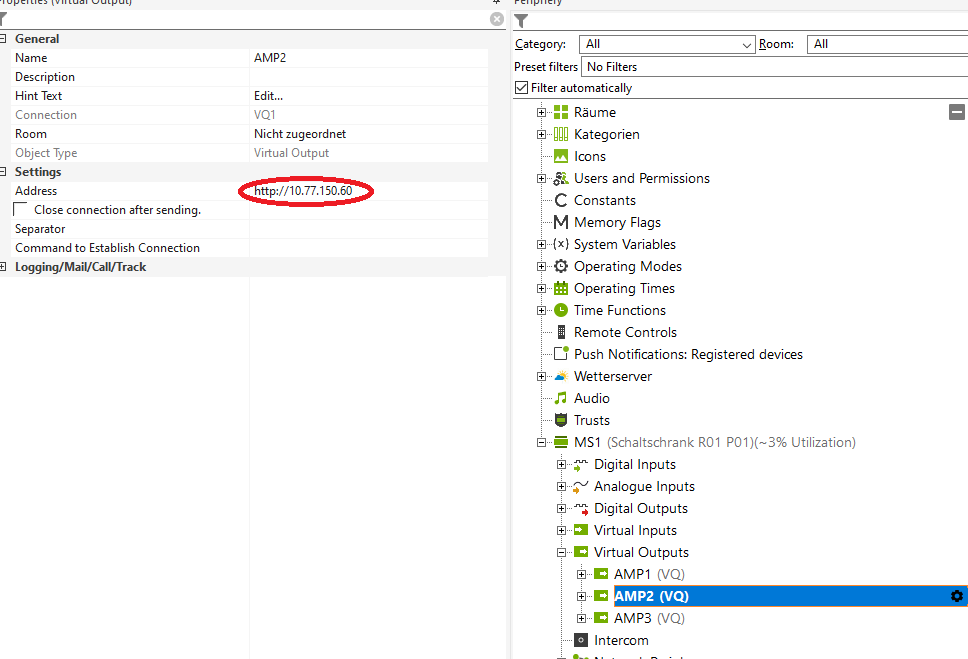
Please change the IP address for each device to its static-ip or hostname.local. Leading http:// must pre appended like http://amp1.local or http://10.77.178.20
For MAXX-STATUS a trailing /rest-api/status is required as well, like http://10.77.150.60/rest-api/status
Download the MAXX-CONTROL.Loxone example file from the Loxone Library
The Template basically provides the following predefined controls:
and some examples of how to create custom commands for improved performance.
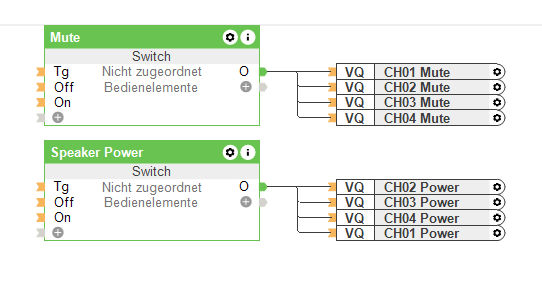
Simple digital outputs which can be grouped together in any desired combination.
Since each state change will send out a single HTTP request, this might cause a slight delay when a lot of channels are changed simultaneously. So, this kind of control is only recommended for a few channels. See Combined Commands to improve performance

Similar to Power / Mute Volume will send out any changes for each output as a single http request.
The interesting part here is how to map the common Loxone Analog Values in a range of 0-10 to a dB value for the amplifiers. That can be easily done with the Correction field of each output. The default configuration will map the values of 0-10 to -72dB - +10dB
This will give you almost the full dynamic range of the volume value:

It’s probably more useful to restrict the volume range accessible by the user to the desired listening levels like 0-10** to -20dB - -10dB or any other suitable range for your application
A basic understanding of the REST-API interface is recommended to create those combined commands.
As a starting point, have a look at the three included examples:
Those commands send the same value to multiple channels within a single HTTP request, significantly improving performance when many channels are involved in a call.
Let’s have a look at the HTTP body which is sent out when the DIGITAL OUTPUT is set to ON by clicking on the edit button of that line:
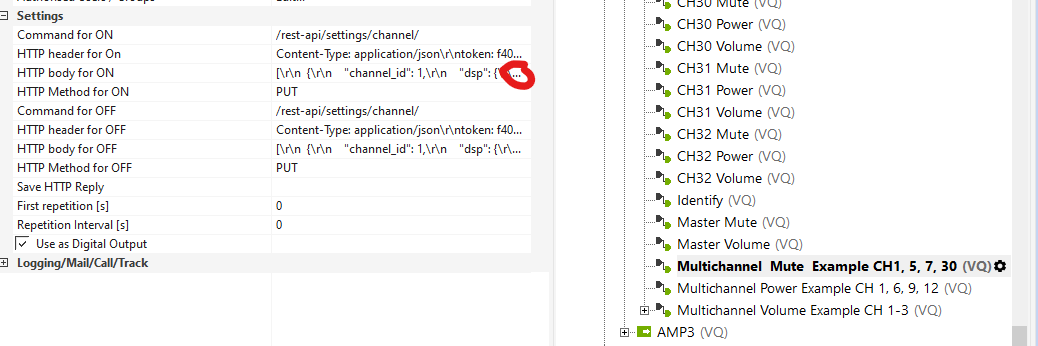
You basically see a JSON payload file containing an ARRAY of single JSON objects for the corresponding channels, indicated by the channel_id tag:
[
  {
    "channel_id": 1,
    "dsp": {
      "mute": {
        "value": true
      }
    }
  },
  {
    "channel_id": 5,
    "dsp": {
      "mute": {
        "value": true
      }
    }
  },
  {
    "channel_id": 7,
    "dsp": {
      "mute": {
        "value": true
      }
    }
  },
  {
    "channel_id": 30,
    "dsp": {
      "mute": {
        "value": true
      }
    }
  }
]
To modify that, simply duplicate the entries:
{
   "channel_id": 1,
   "dsp": {
      "mute": {
         "value": true
      }
   }
},
for each channel, you want to control and change the channel_id to the desired channel number.
Don’t forget the trailing comma "," after each object, except the last one! Please use any JSON validator to verify the final JSON object before putting it back into Loxone Config
Copy and paste the JSON payload to any text editor and replace the "value": true with "value": false and insert that object into the HTTP body for OFF
Download the MAXX-STATUS.Loxone example file from the Loxone Library
The MAXX-STATUS Template periodically polls the /rest-api/status URL of the amplifier and filters the response for each channel status/device status.

The raw CHxx STATUS value represents the default syslog severity levels like:
| STATUS | Level |
|---|---|
| 0 | EMERGENCY |
| 1 | ALERT |
| 2 | CRITICAL |
| 3 | ERROR |
| 4 | WARNING |
| 5 | NOTICE |
| 6 | INFORMATIONAL |
| 7 | DEBUG |
| 8 | OK |
In combination with the provided STATUS component with the following settings:
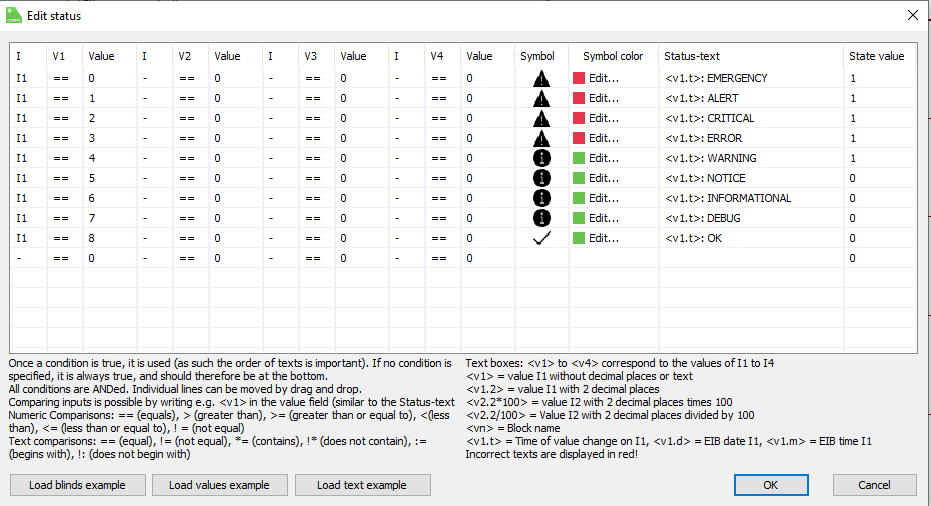
An easy virtualization can be achieved.
Combining the Val output of each STATUS component with an OR Gate, a simple GLOBAL STATUS can be generated when any channels or device assert any state higher than NOTICE ( see STATUS settings, State value).
Innosonix GmbH has developed a plug-in to integrate our web based control page for Maxx Series called Maxx Control with QSC Q-SYS Ecosystems.
Innosonix Devices can be added to the Q-SYS Ecosystem with Q-SYS Designer Software. You must be using Q SYS Designer 9.8 or above in order to use this plug-in
Innosonix Devices can then be controlled by Q-SYS Designer, Q-SYS compatible user-controlled interfaces and GPIO logic ports integrated into Q-SYS cores and peripherals.
Innosonix devices must have firmware version V3.19.4 or above installed to be compatible with the Maxx Control Plug-in. If you are unsure what firmware you device is currently using, please download IDFM to help confirm and if need be install up to date firmware.
For further control and processing capabilties of your Maxx Device please download Maxx Remote
Download the Innosonix Maxx Control Plug-in from the Third Party Downloads section of the Downloads section of our website.
Copy the insert name of plug-in here from into the My Documents/QSC/Q-Sys Designer/Plugins Folder
Open Q-SYS Desinger, the Plug-in can be found in the Schematic Elements/Plugins section on the right-hand side of the page:
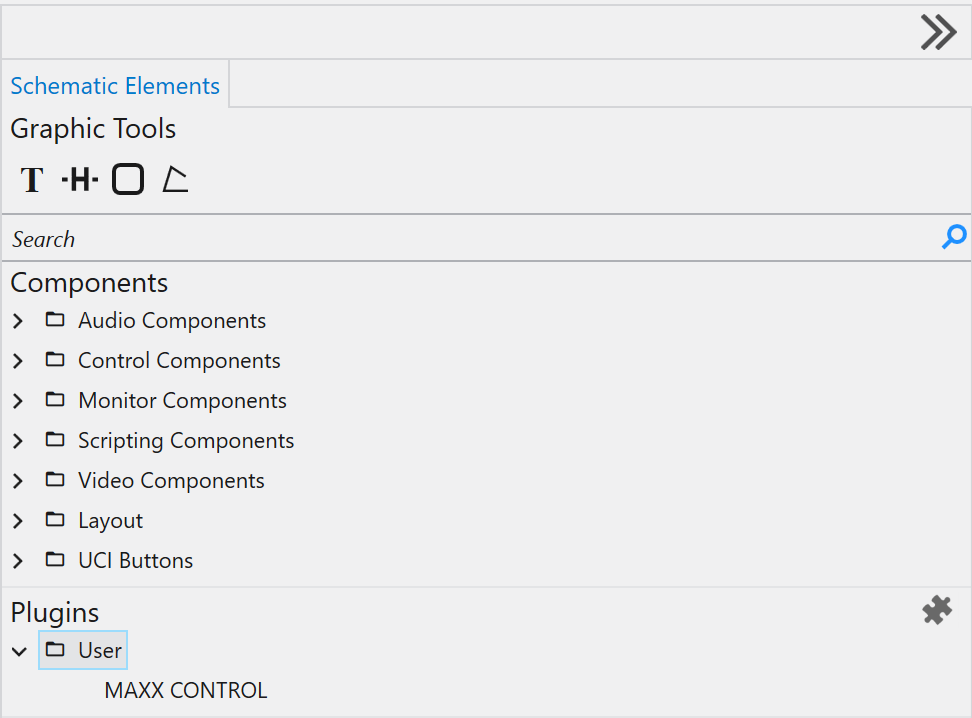
Drag and drop the Plug-in into your design and select it by clicking once on the Plug-in icon.
Control pins can be enabled by ticking the check-boxes in the “Control Pins” section as required:
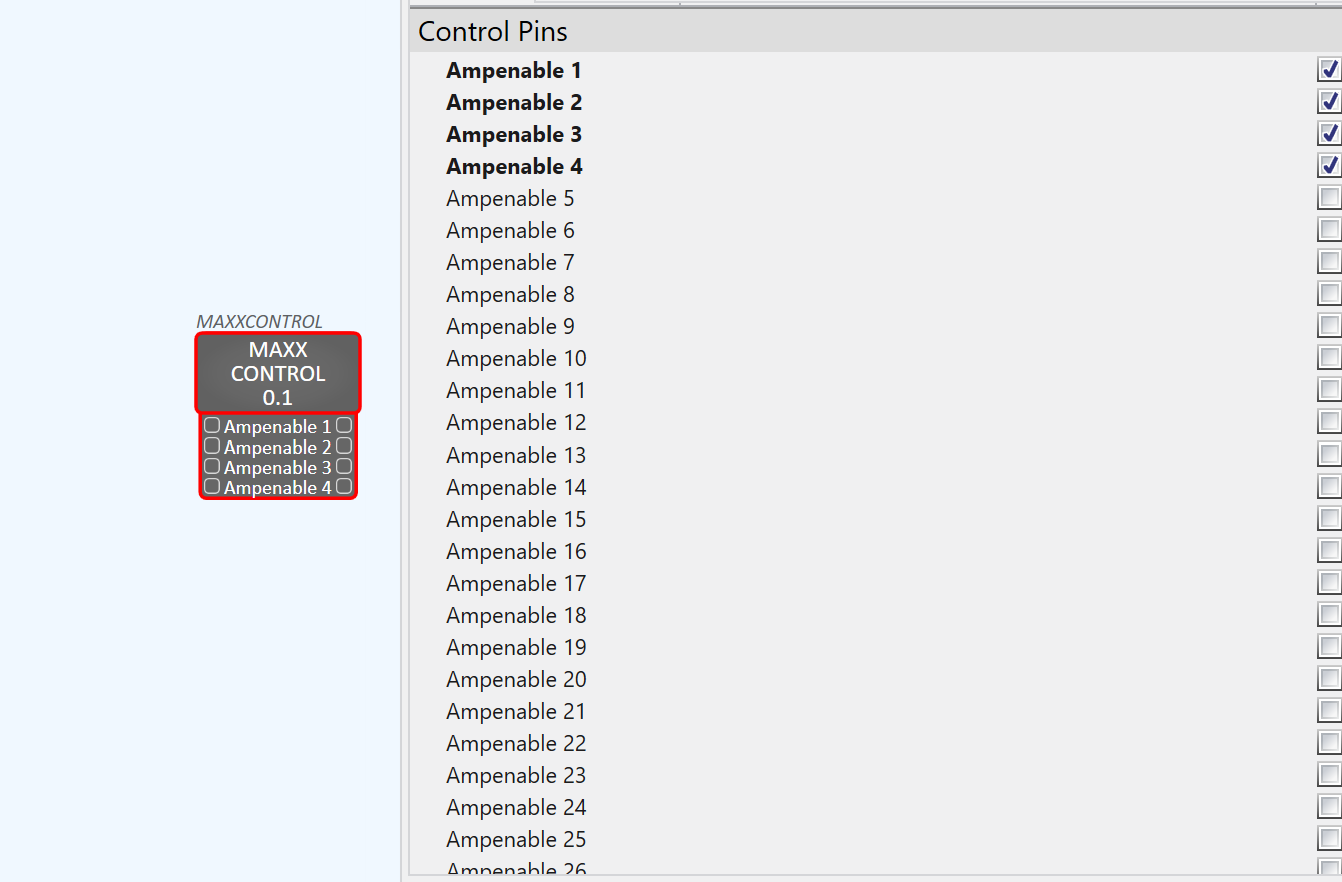
Go “Online” with your Q-Sys project. If devices are not connected you can use the “Emulate” function under the “File” tab in the menu above.
Double clicking the Plug-in icon brings up the device interface, select the “Global Tab”, and enter the amplifiers IP address. If you are having trouble find the IP address of your device it will appear on the front screen of your device Alternatively, use idfm to find the IP addressof your device:
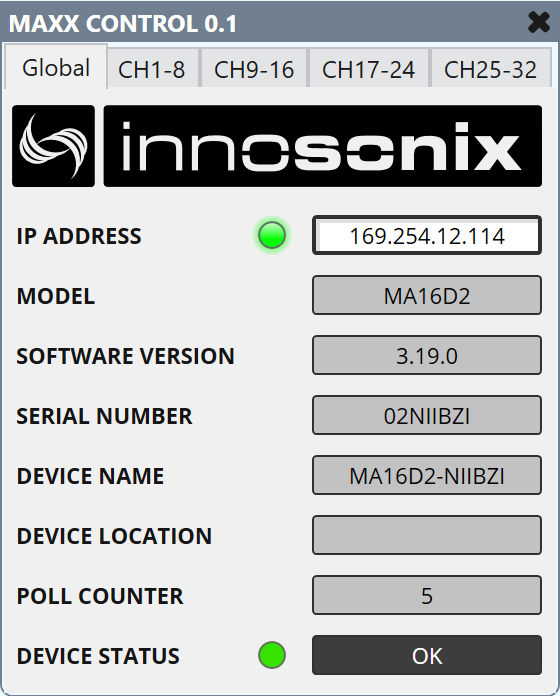
The “Global Tab” notifies the user of important information on the Innosonix device including:
Select the “Channels Tab”:
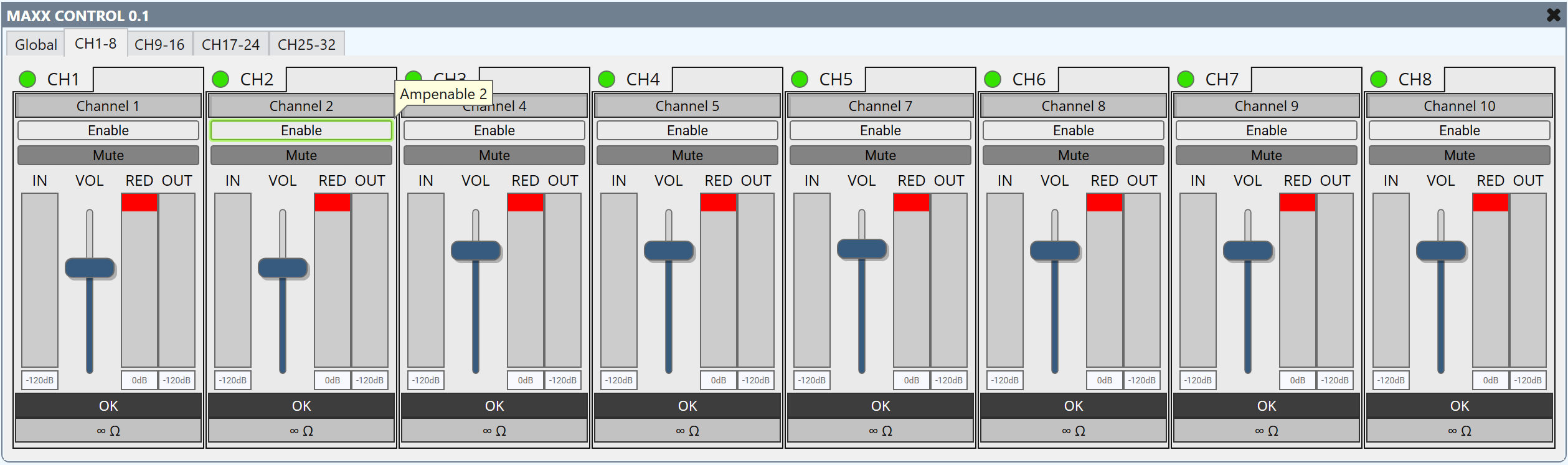
For any more information please visit feel free to Contact us!