Projects
Categories:
Goal / when to use
Manage the project file that holds your channels, groups, devices, inputs, views, and tuning. Use this when starting a job, moving between machines, or keeping a Docker server’s configuration safe.
Prerequisites
- Maxx Remote Desktop or Server running (Installation)
Create a new project
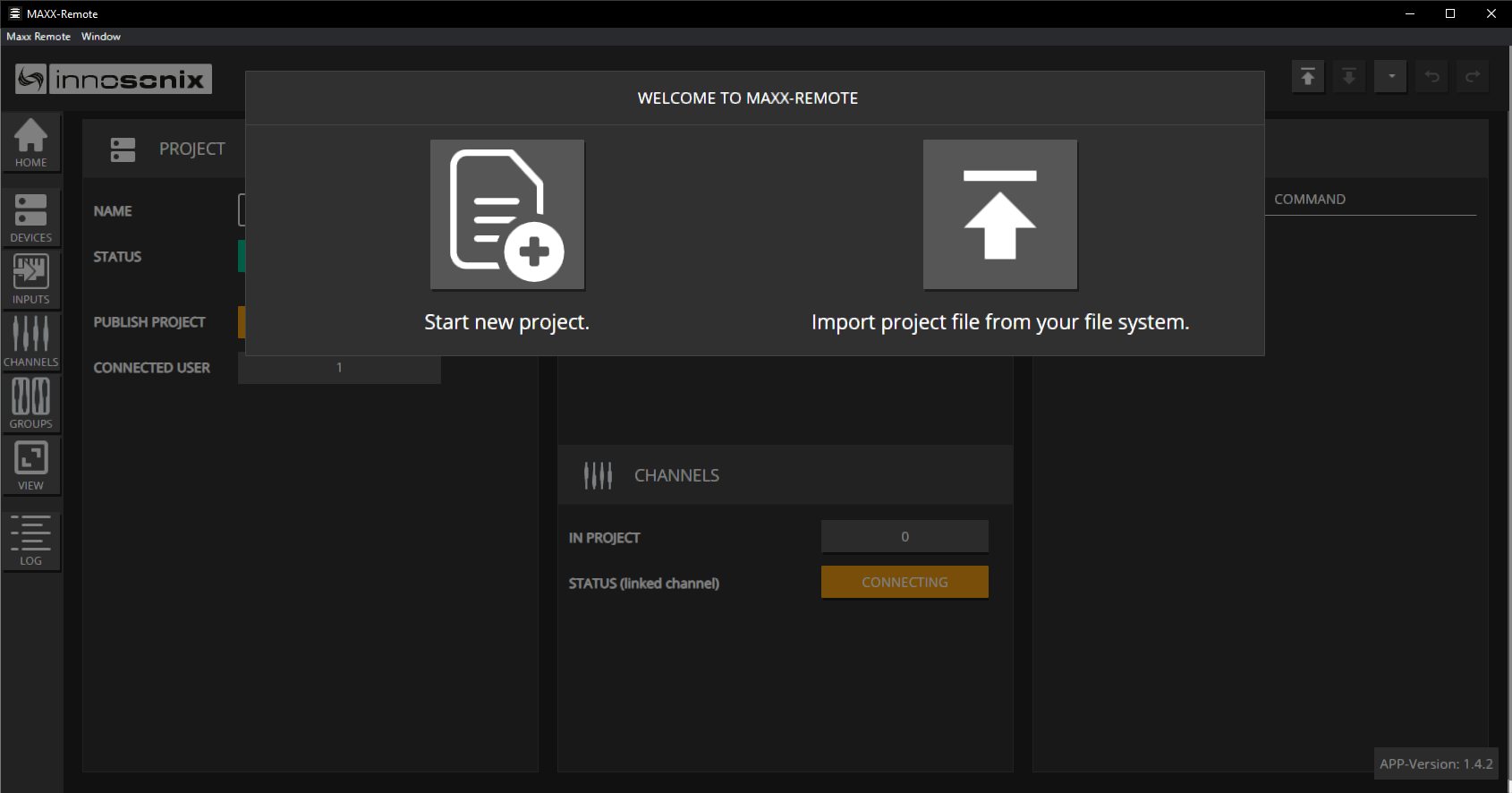
Desktop or browser splash
- Start Maxx Remote with no project loaded.
- Choose Start a new project.
- Enter a clear site name (for example
Museum-Floor2).
Desktop menu (Electron)
Use the application menu when available:
- New Project
- Load Project / Last Projects
- Save Project / Save Project As
- Close Project
Expected result
HOME shows the new project name; DEVICE / CHANNEL counts start empty.
Open / import an existing project
- On the splash screen, choose Import project archive to host, or
- Use the top-bar Import control to upload a project archive or partial JSON.
Expected result
HOME and list pages populate with the imported project.
Export / backup
- Use the top-bar Export control.
- Store the download with your site documentation.
Export before:
- Updating Maxx Remote
- Recreating a Docker container
- Handing the project to another engineer
Offline planning
You can design without amplifiers:
- Create channels and groups.
- Set volumes, EQ, delay, mute, speaker presets.
- Define INPUTS and roles (even if Dante is not online yet).
- On site, add devices and link.
Project settings stay in Maxx Remote until you link and sync to hardware.
Docker persistence
Without a mounted volume, deleting the container deletes the project. Prefer a Docker volume, and keep exports anyway.
Recommended pattern:
- Mount a volume (see Installation).
- Periodically Export from the UI as an off-host backup.
- When migrating hosts, import the archive into the new server.
HOME project card
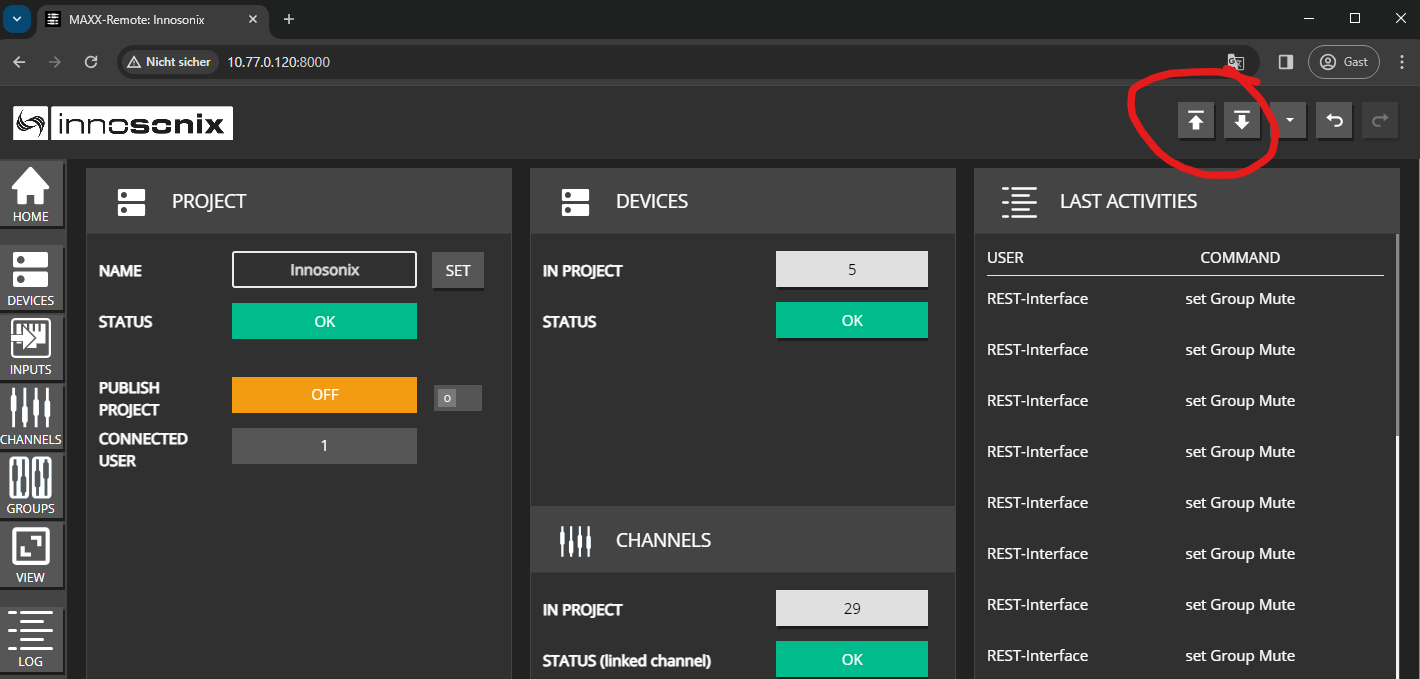
On HOME you can:
- View / set the project NAME
- See overall STATUS for devices and linked channels
- Enable AUTO SYNC so Maxx Remote can push project data when differences are found
- Open REST-API Doc for integrators
Details: GUI · HOME.
Expected result
You can create, reopen, and back up a project, and you know how Docker storage differs from Desktop files.
Common mistakes
- Working for days on Docker with no volume and no export.
- Overwriting a live project import without a backup export.
- Assuming Desktop “Save” and Server “Export” are the same workflow — Server projects live on the host; use Import/Export (and volumes) deliberately.