Tuning
Categories:
Goal / when to use
Dial in levels and DSP after speakers are linked. Prefer group moves for room-wide changes and channel moves for speaker-specific trim.
Prerequisites
- Channels mapped to groups
- Devices linked if you want to hear results on hardware
- Understand summation (Concept)
Volume
Room (group)
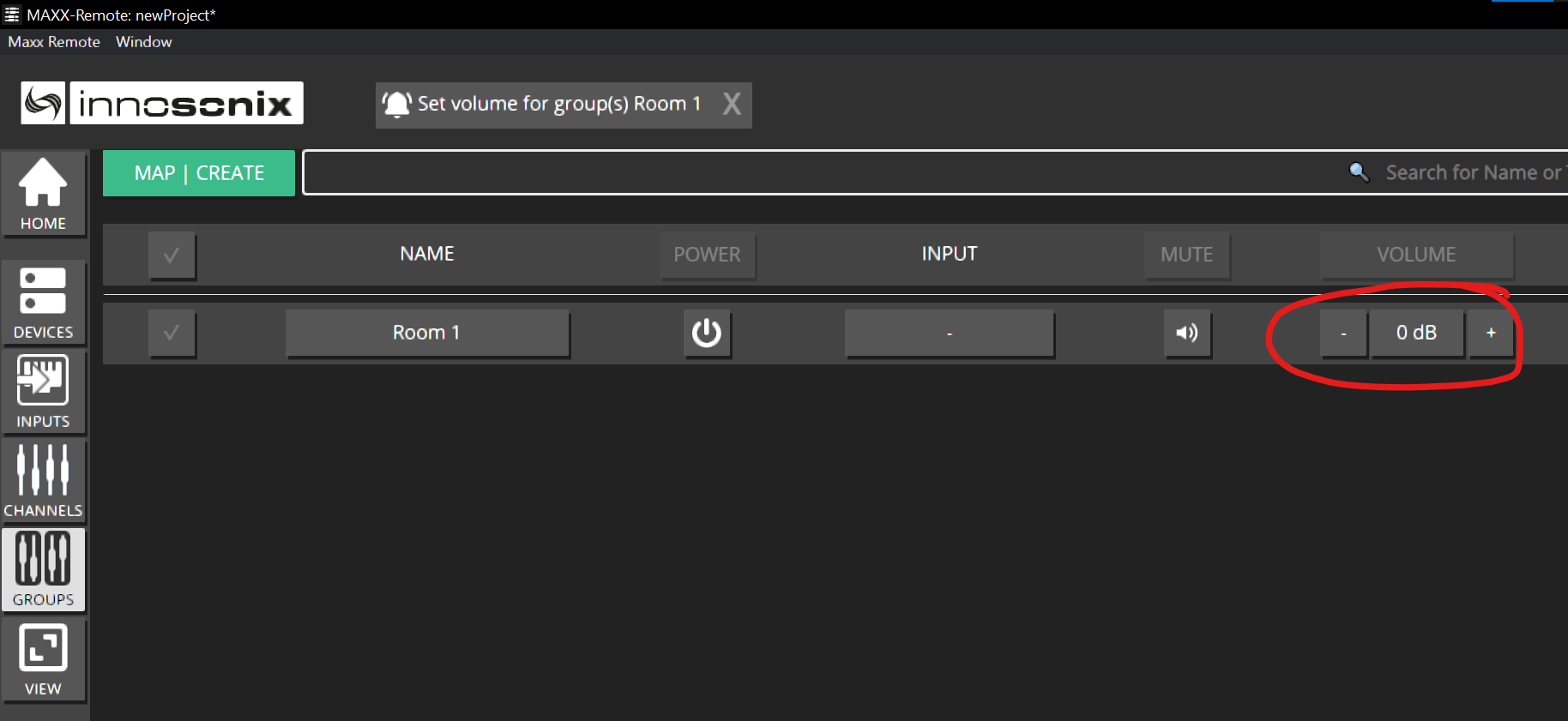
- Open GROUPS.
- Click VOLUME for the room.
- Enter a value (for example
-20) → Enter / SET.
Speaker trim (channel)
- Open CHANNELS.
- Click VOLUME on the speaker.
- Enter an offset relative to the current summed output workflow you are using → SET.
CHANNELS always shows the final output (channel + all groups). That is why a channel may already read −20 dB after a group change.
Mute and power
- Use group MUTE for room silence.
- Use channel MUTE for a single speaker.
- POWER controls (where available) can be driven from channel, group, or operator VIEW widgets.
EQ
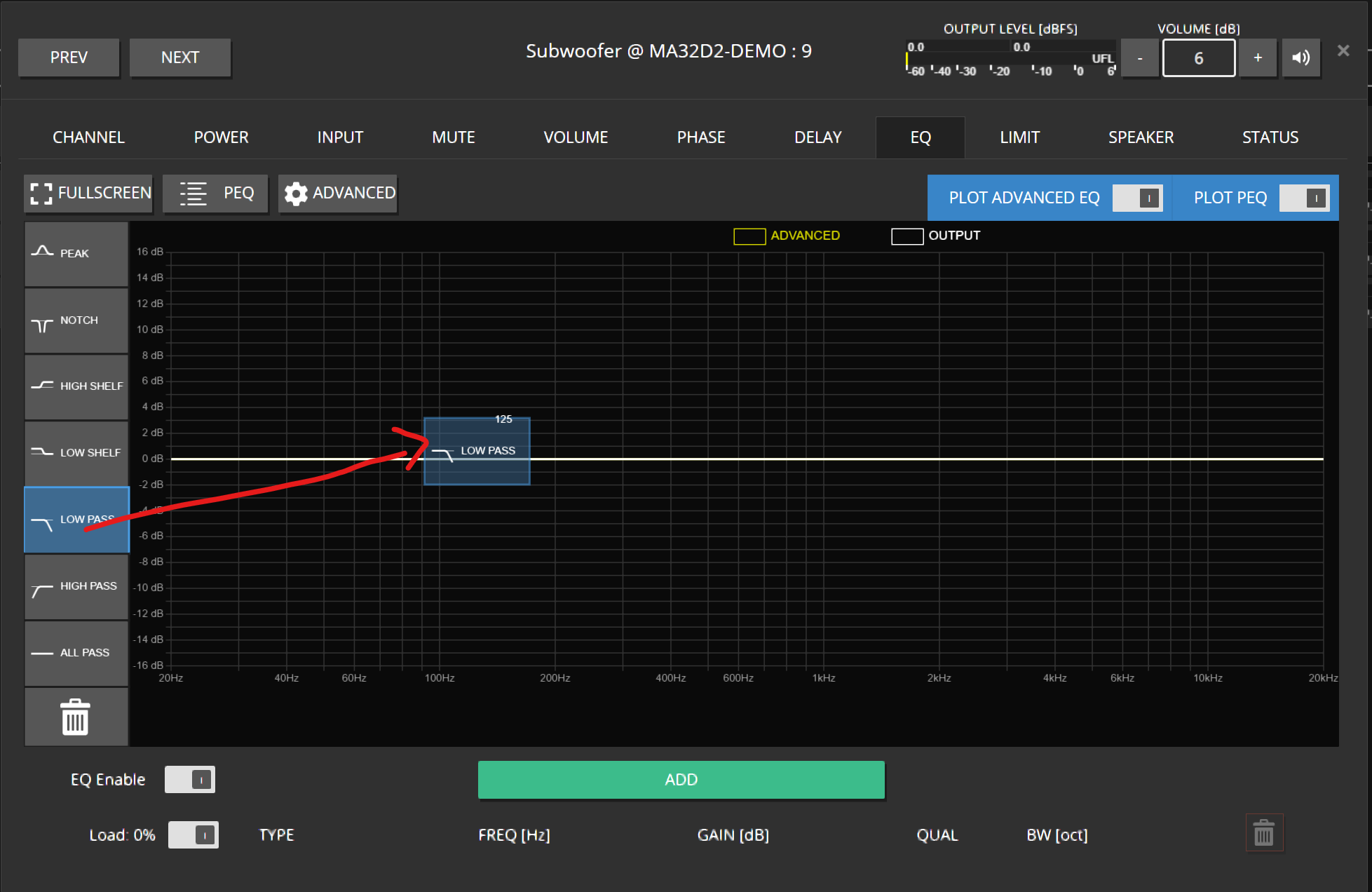
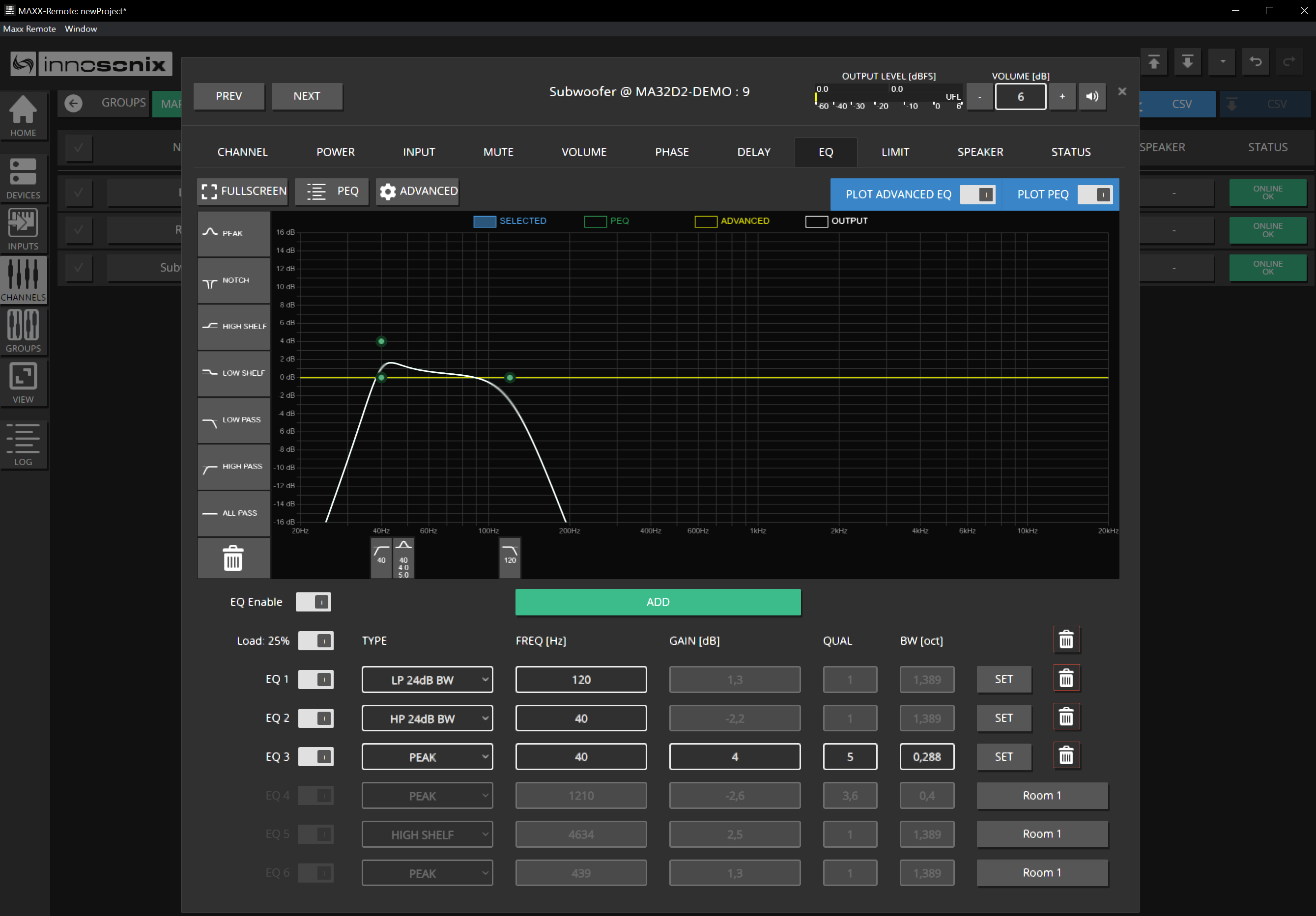
- Open EQ from the channel or group row (EQ icon / edit dialog EQ tab).
- Drag filter types (PEQ, shelves, HP/LP, …) into the plot.
- Select a filter, set type (gear), frequency, gain, Q.
- On a channel, review the summed curve when groups also contribute EQ.
Delay and phase
- Open the channel or group edit dialog → DELAY / PHASE.
- Set delay for alignment; use phase invert when polarity must flip.
- Prefer group delay only when the whole room should shift together.
Limiters, FIR, speaker tools
Advanced DSP (limiters, FIR, speaker detection, speaker presets) lives in the channel / group edit tabs (LIMIT, SPEAKER, …). For packaged speaker tunings see Speaker presets.
Bulk edits
On CHANNELS / GROUPS list pages, column headers such as VOLUME, MUTE, DELAY, PHASE open editors that can apply to the current selection — useful for many identical fills.
Undo / redo
Maxx Remote supports undo/redo for project edits — use it while tuning instead of guessing previous values.
Expected result
Rooms sit at safe levels; individual speakers are trimmed; EQ/delay match the design intent; CHANNELS output values match what you hear.
Common mistakes
- Turning channel volume up to “fix” a group that is muted.
- Building the same EQ twice (channel + group) without noticing summation.
- Tuning in Maxx Control in parallel — creates Out of Sync.
- Forgetting IDENTIFY before applying aggressive EQ to the wrong linked output.