Inputs and routing
Categories:
Goal / when to use
Bring program audio into Maxx Remote so groups and channels receive the correct Dante (or related) streams.
Prerequisites
- Groups with Input ability enabled
- Channel ROLE planned (Left / Right / Mono / surround roles)
- Dante Controller available to read TX names
- See also Surround input sources for 5.1 / 7.1
Create an INPUT SOURCE
- Open INPUTS → + INPUT SOURCE.
- Fill in:
- SOURCE LABEL — friendly name in Maxx Remote
- RECEIVE HOSTNAME — Dante device hostname
- RECEIVE LABEL — transmit channel name
- For stereo / surround sources, add each leg as required by the source type.
- Save with CREATE SOURCE.
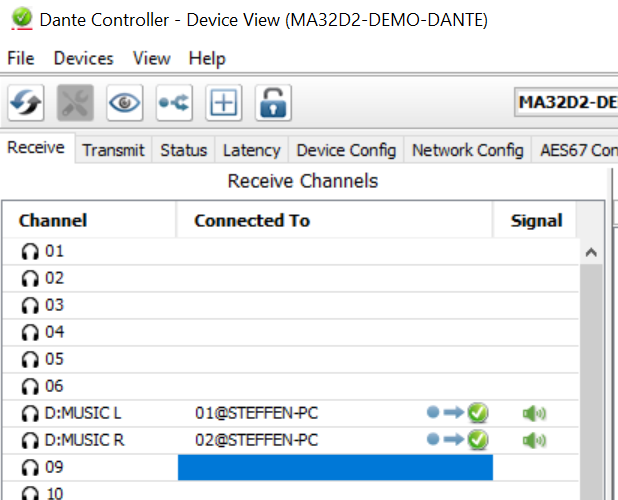
Example TX naming in Dante Controller: 01@STEFFEN-PC.

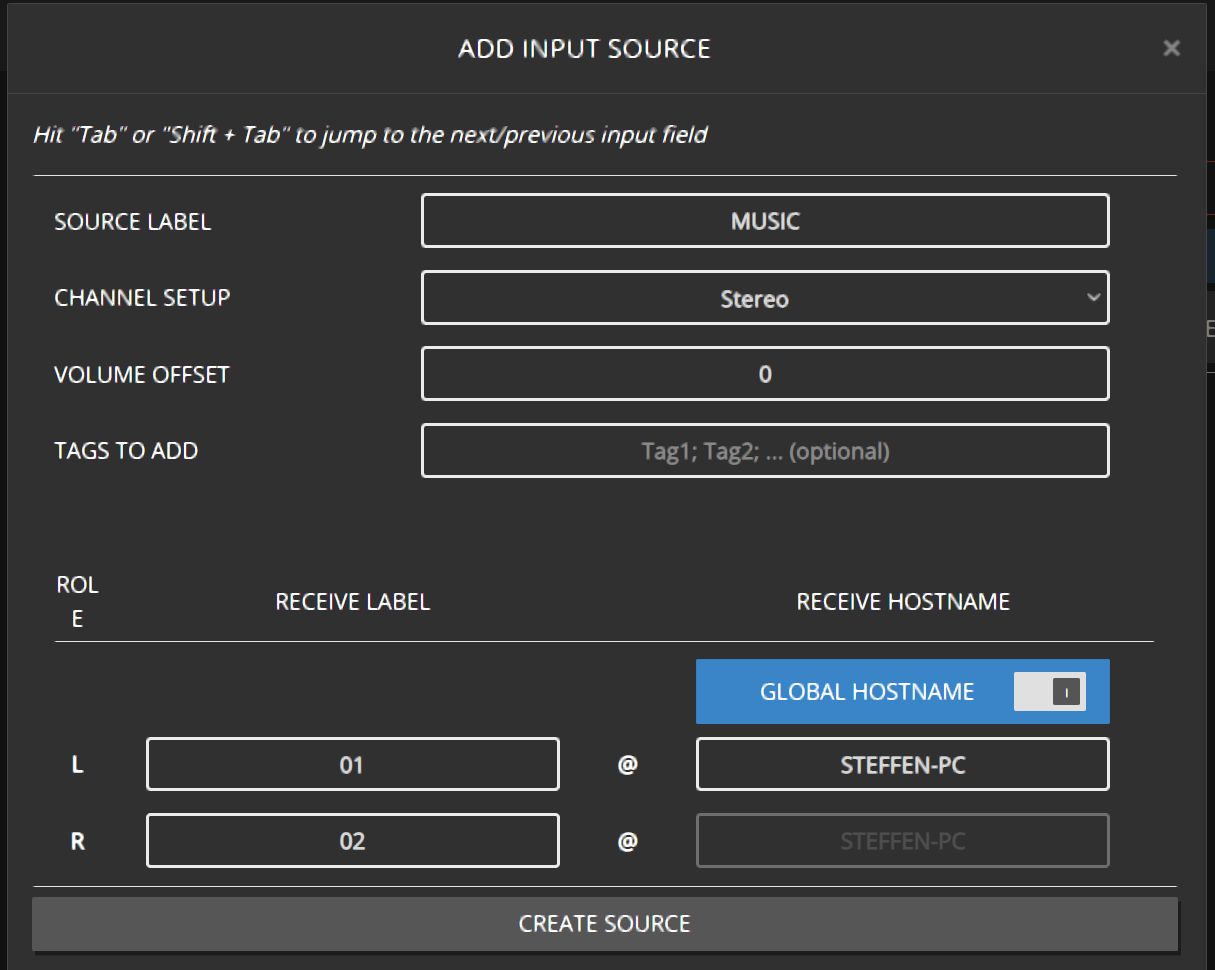
Optional tools on INPUTS: DANTE DISCOVERY, volume offset / mute on the source, CSV import/export for large lists.
Expected result
The source appears in INPUTS and can be selected on groups.
Assign a source to a group
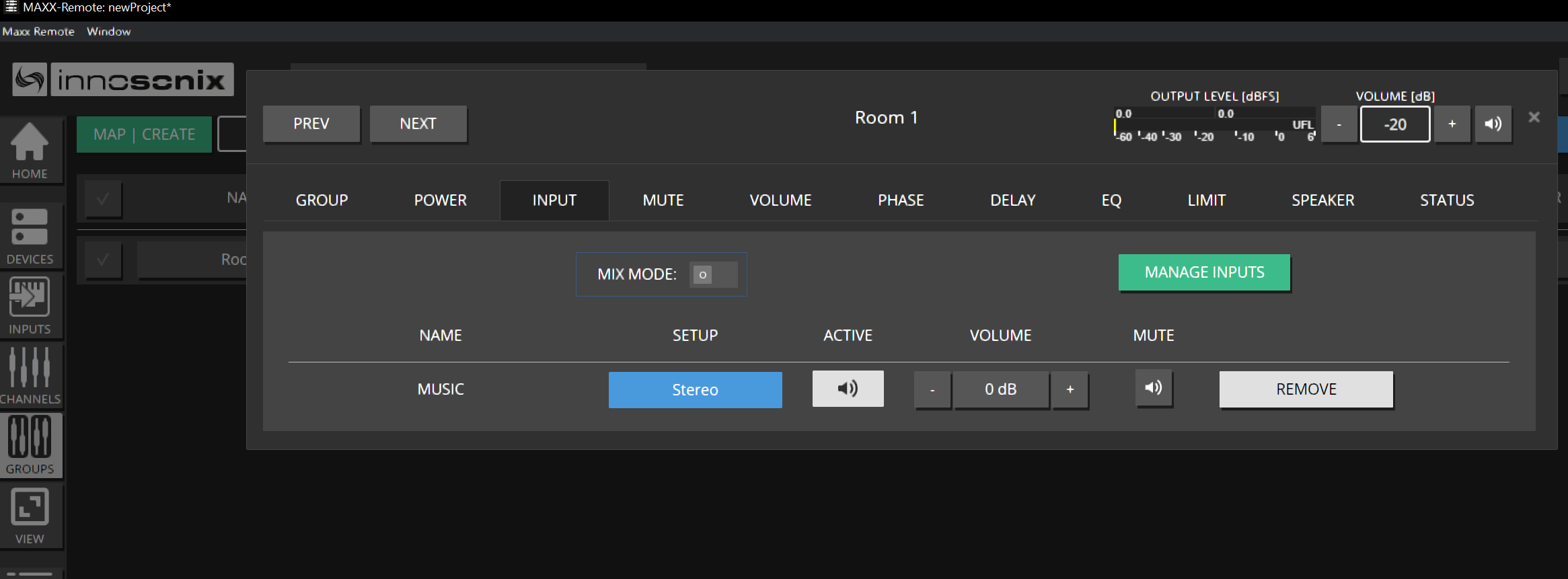
- Open GROUPS → select the group.
- Open INPUT and choose the source.
- Confirm the group output / channel setup (Stereo, 2.1, 5.1, …) matches the speakers in that room.
Expected result
Member channels receive streams according to their ROLE and the active crossmix strategy.
Set channel roles
- Open CHANNELS (or the channel edit dialog).
- Set ROLE to LEFT, RIGHT, MONO, or a surround role.
- NONE means this channel will not take INPUT SOURCE streams.
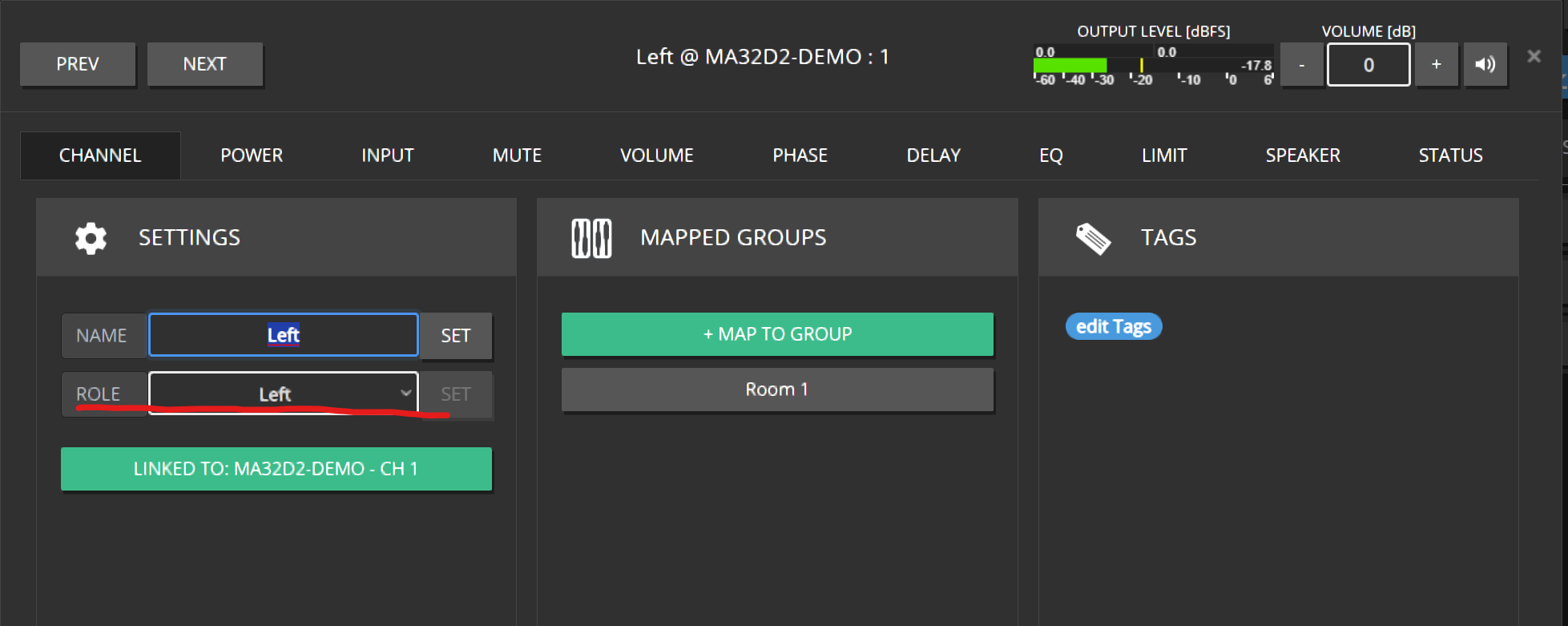
MONO typically combines the available legs (downmix). That is correct for many subs; wrong for a dedicated Left speaker.
Expected result
Left hears left, Right hears right; Dante Controller shows dynamic subscriptions (often D:).
Review the signal path
Use SIG-PATH to see source → group → channel → device at a glance, and to run TEST / identify from that view. See GUI · SIG-PATH.
Common mistakes
- Wrong hostname / TX label — silent channels.
- Group Input ability disabled — INPUT and setup controls hidden.
- Stereo music on a group with all roles still MONO.
- Expecting Maxx Remote to invent Dante TX names — copy them from Dante Controller.