Devices and linking
Categories:
Goal / when to use
Connect real amplifiers and map each project channel (speaker) to the correct HW channel (amp output).
Prerequisites
- Channels already created (Channels and groups)
- Amplifiers reachable (Prerequisites)
- Prefer fixed IPs for installed systems
Add a device
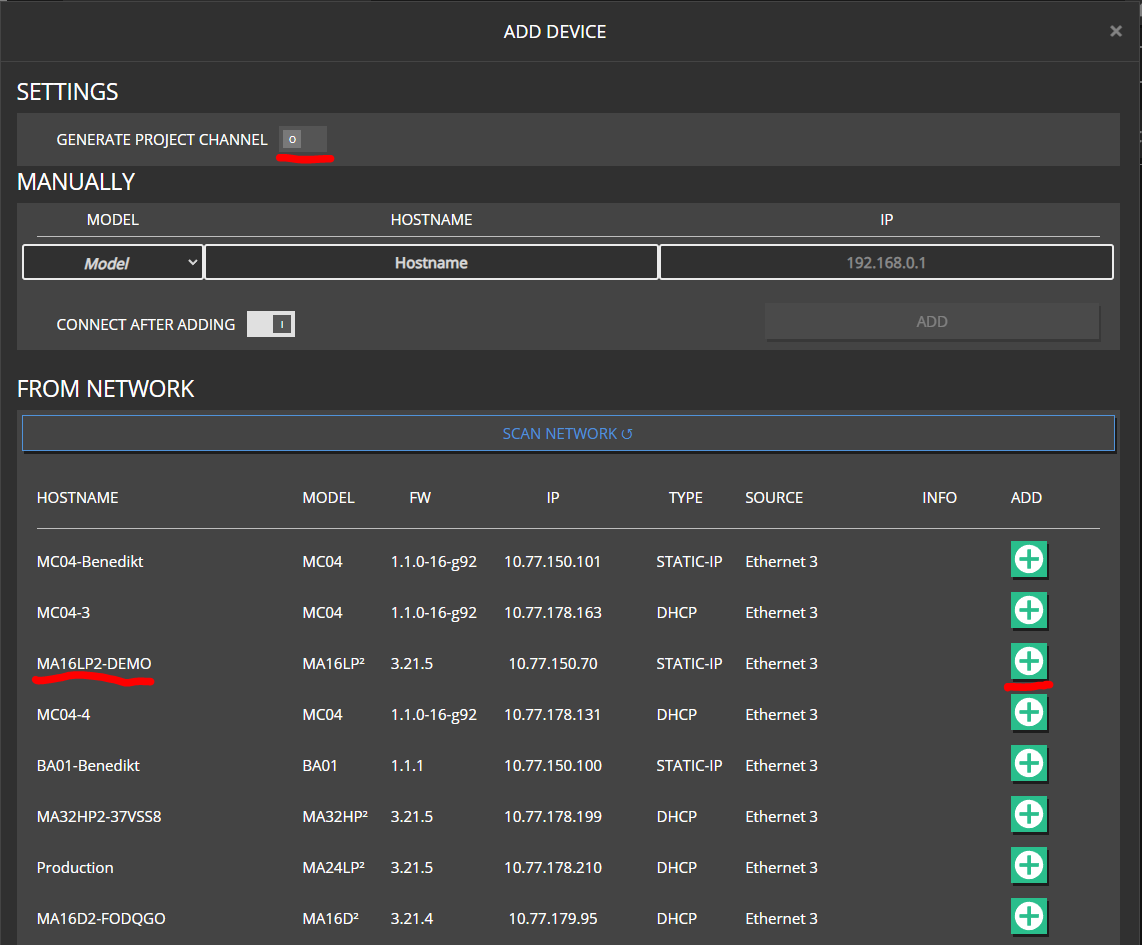
- Open DEVICES → ADD DEVICE.
- Choose:
- ADD FROM NETWORK — select discovered units (SCAN NETWORK as needed)
- ADD MANUALLY — model + hostname (and IP when known)
- Decide whether to CONNECT AFTER ADDING.
- Only enable CREATE CHANNELS if you want Maxx Remote to auto-create a project channel per amp output. For planned systems, leave this off.
- Confirm ADD / ADD SELECTED.
Expected result
The device row appears with STATUS updating as Maxx Remote connects. CONNECT can pause network activity.

Link project channels to HW channels
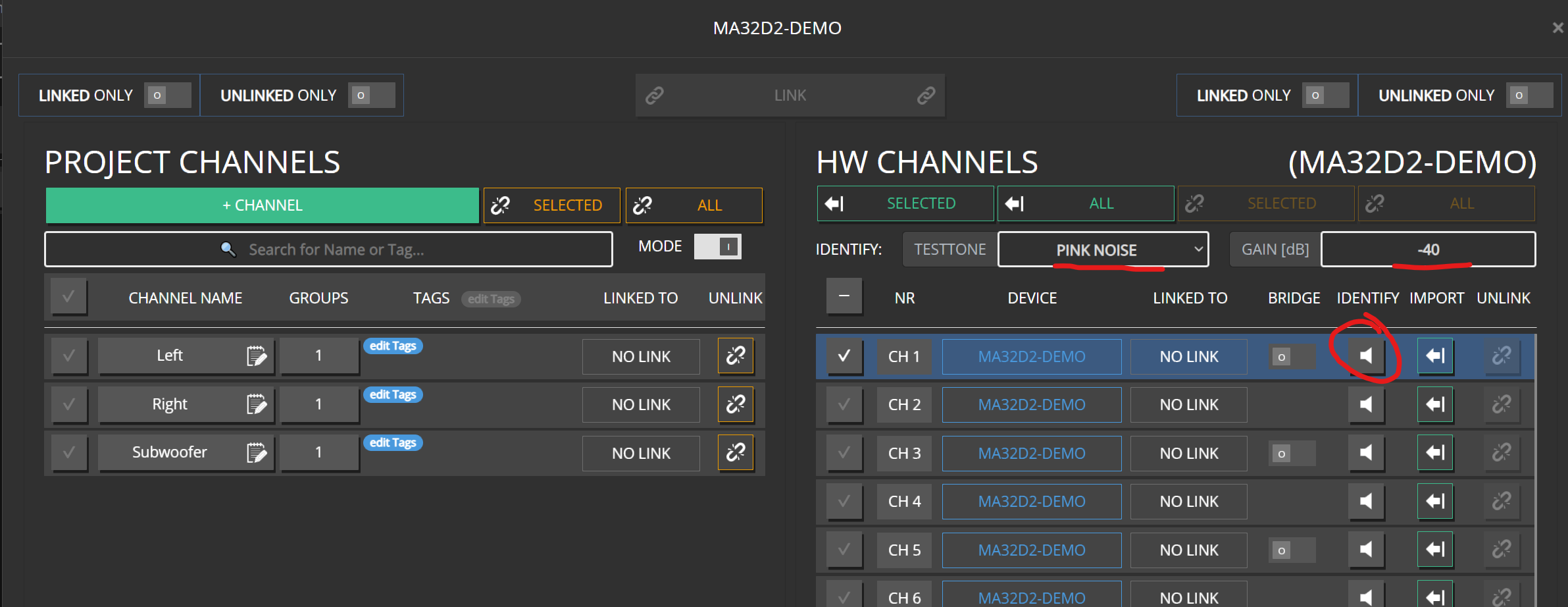
On the device row, open LINK CHs.
Select a project channel and a free HW channel.
Use IDENTIFY on the HW side to play a test tone and confirm the speaker.
LINK (or drag and drop).
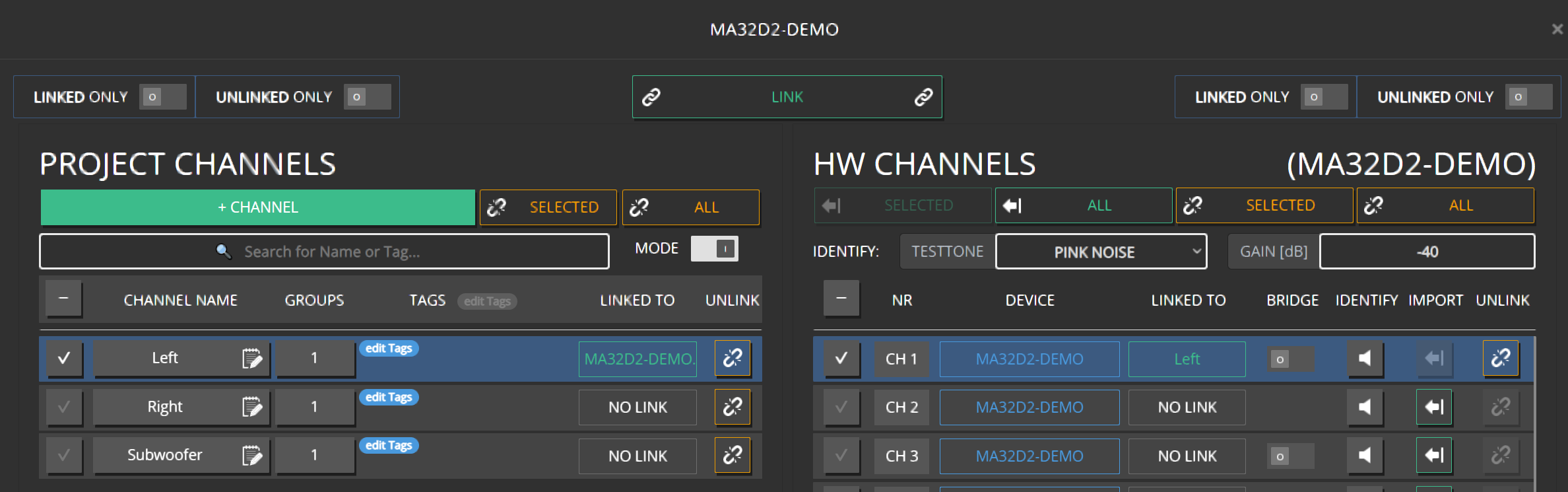
Repeat for all speakers.
Reorder / swap by dragging HW channels between slots.
Expected result
CHANNELS LINKED TO shows the amp/output; identify matches the physical position.
Multi-way and speaker devices
Multi-way channels need several HW channels (or a speaker-style device) linked together. See Multi-way channels.
Replace a device
Typical sequence:
- Export the project (Projects).
- On the old device row, note hostname / links (or leave links and remove carefully).
- Add the replacement amplifier (same model when possible).
- Re-link project channels to the new HW channels (IDENTIFY again).
- Use SYNC if STATUS shows differences (Troubleshoot).
Optional delete dialog may offer to remove linked project channels — usually keep project channels and only remove the device.
Device row actions worth knowing
| Control | Purpose |
|---|---|
| STATUS | Connection / health |
| SYNC | Resolve project vs device differences |
| IDENTIFY | Visual / audible identify on the amp |
| CONNECT | Enable or pause control connection |
| LINK CHs | Open the linker |
| SETTINGS / REMOVE | Device config or remove from project |
| REBOOT DEVICE | Reboot from Maxx Remote when available |
Common mistakes
- Linking without IDENTIFY — wrong speaker, wrong EQ forever.
- Auto-creating 32 project channels you never use.
- Relying on discovery across routers — enter IP for fixed installs.
- Removing a device and accidentally deleting the project channels you still need.